
Data Processing Agreements (DPA)
Whenever third parties (so-called processors) are involved in processes that process personal data, a Data Processing Agreement (DPA) is required. One can also act as a processor when providing services for other companies. The DPA defines the conditions under which the processor processes personal data on behalf of the controller. Metasoul supports the creation and management of these DPAs.
Additional useful tips and information can be found here.
Metasoul provides a dedicated module for managing Data Processing Agreements.
In this module, Metasoul automatically generates entries for required Data Processing Agreements based on data from the Record of Processing Activities. A Data Processing Agreement is always linked to a documented process in the Record of Processing Activities and to the respective contractual partner. If indicated accordingly in the Record of Processing Activities, an entry may also apply generally to multiple customers. The respective “Edit” icon allows management of the Data Processing Agreement for each entry.
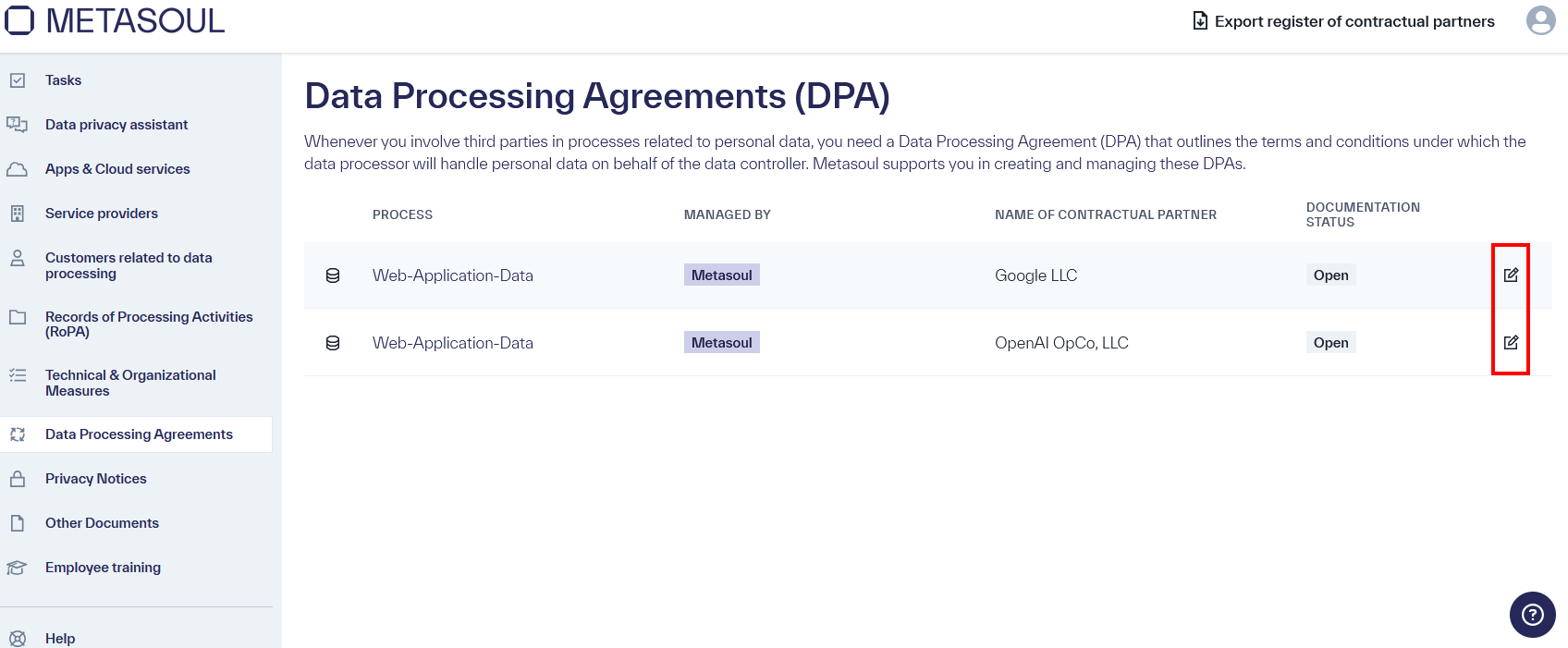
For each entry, the following options are available to manage a Data Processing Agreement:
-
Upload an existing Data Processing Agreement.
-
Specify a direct link to the DPA or to the location where it can be found.
-
Create a Data Processing Agreement using the Metasoul DPA generator.
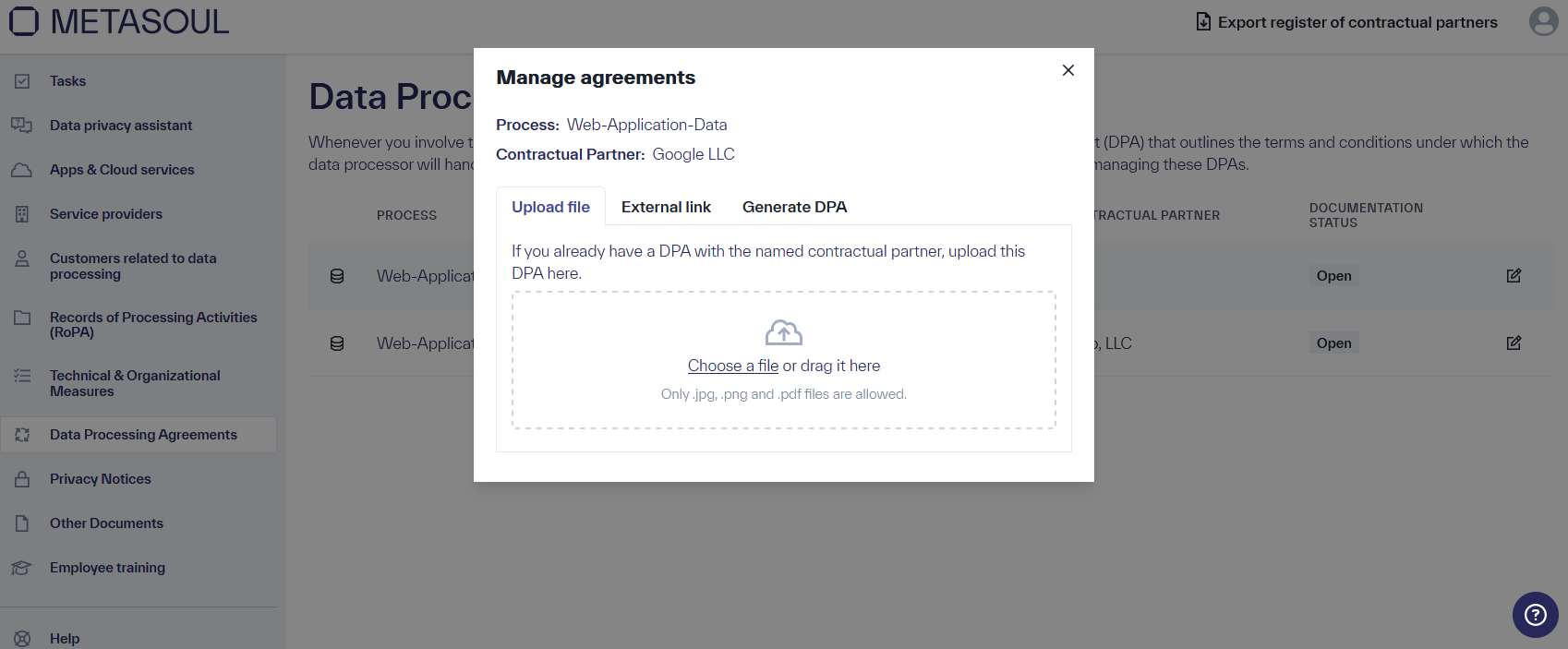
When a DPA is added using one of the listed options, it is created and versioned. The stored DPA can be modified again using the “Edit” icon.
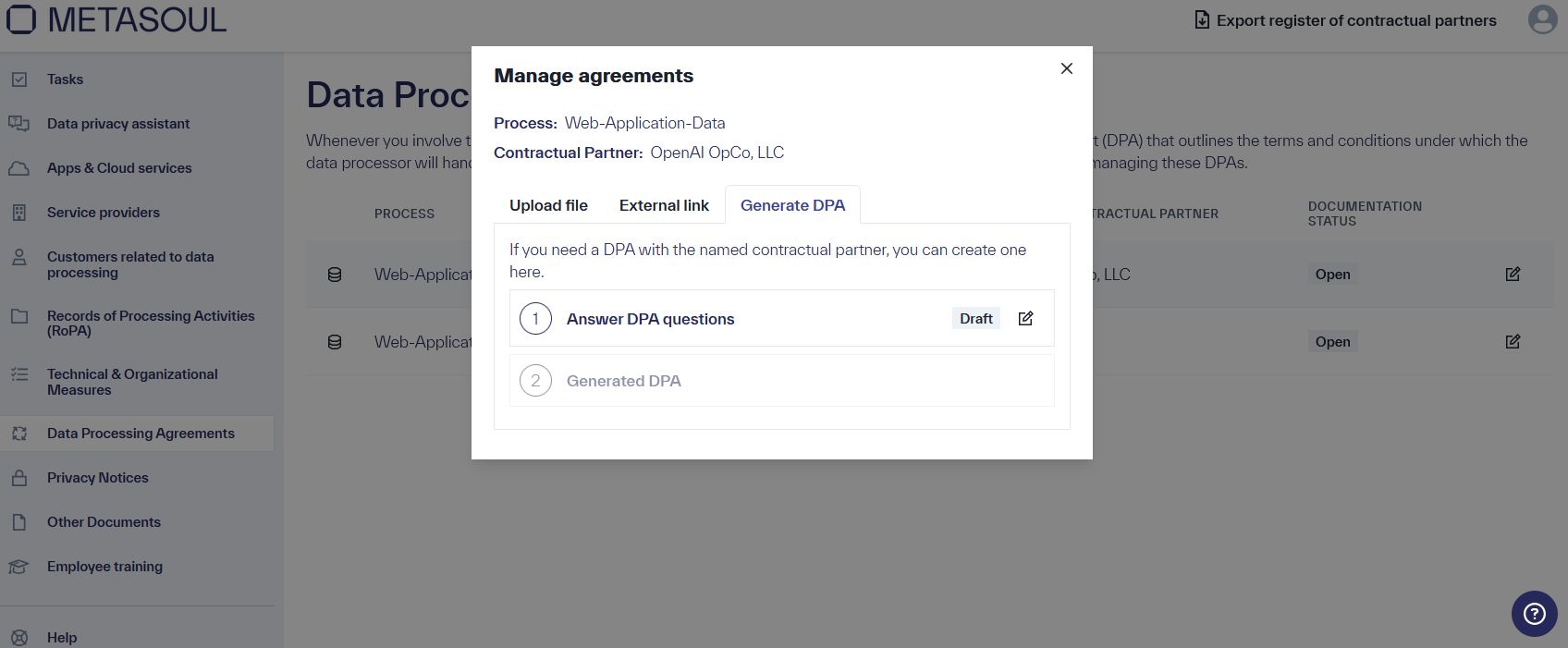
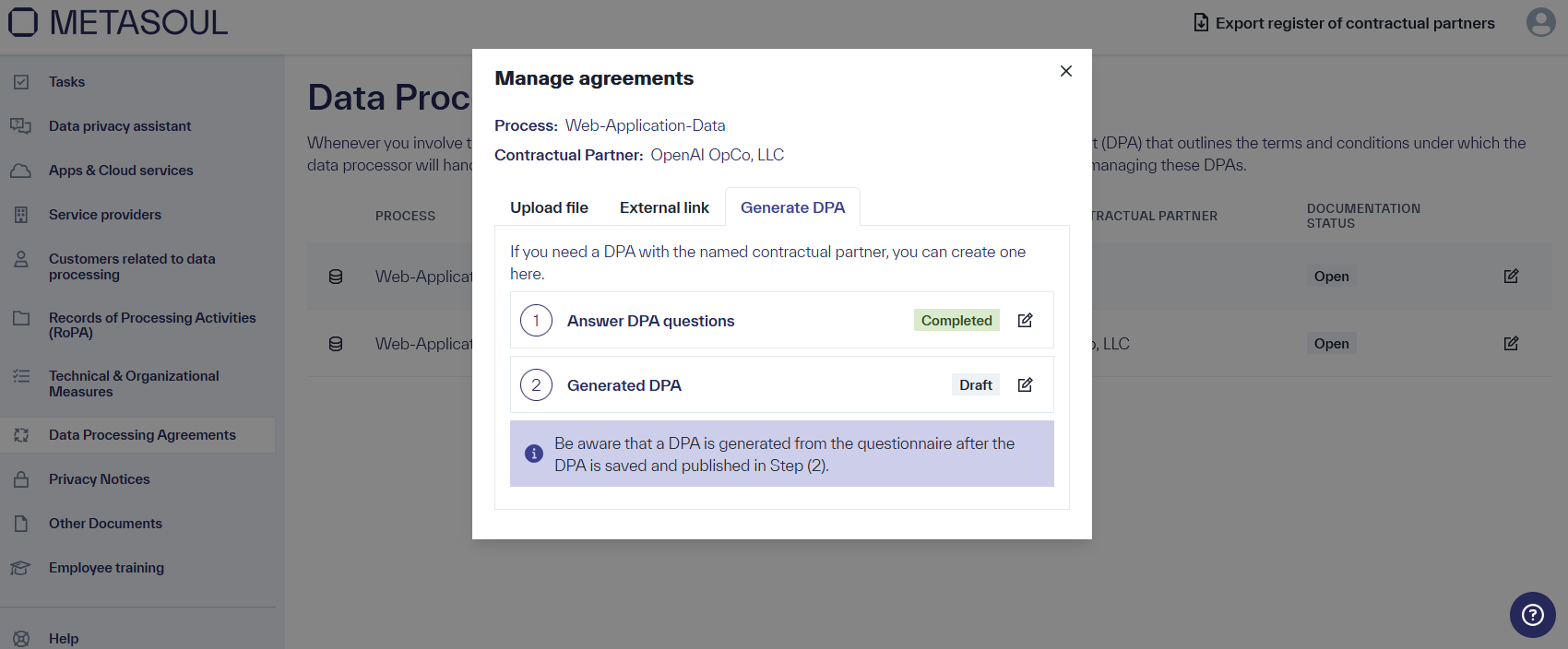
In the “Data Processing Agreements” module, DPA entries are arranged in a list. DPA entries are automatically created during the RoPA process. Each entry has an “Edit” icon on the right edge, which opens a window where the desired option can be selected under the “Generate DPA” tab. Clicking the “Edit” icon in step 1, “Answer the DPA questions,” opens the DPA questionnaire.
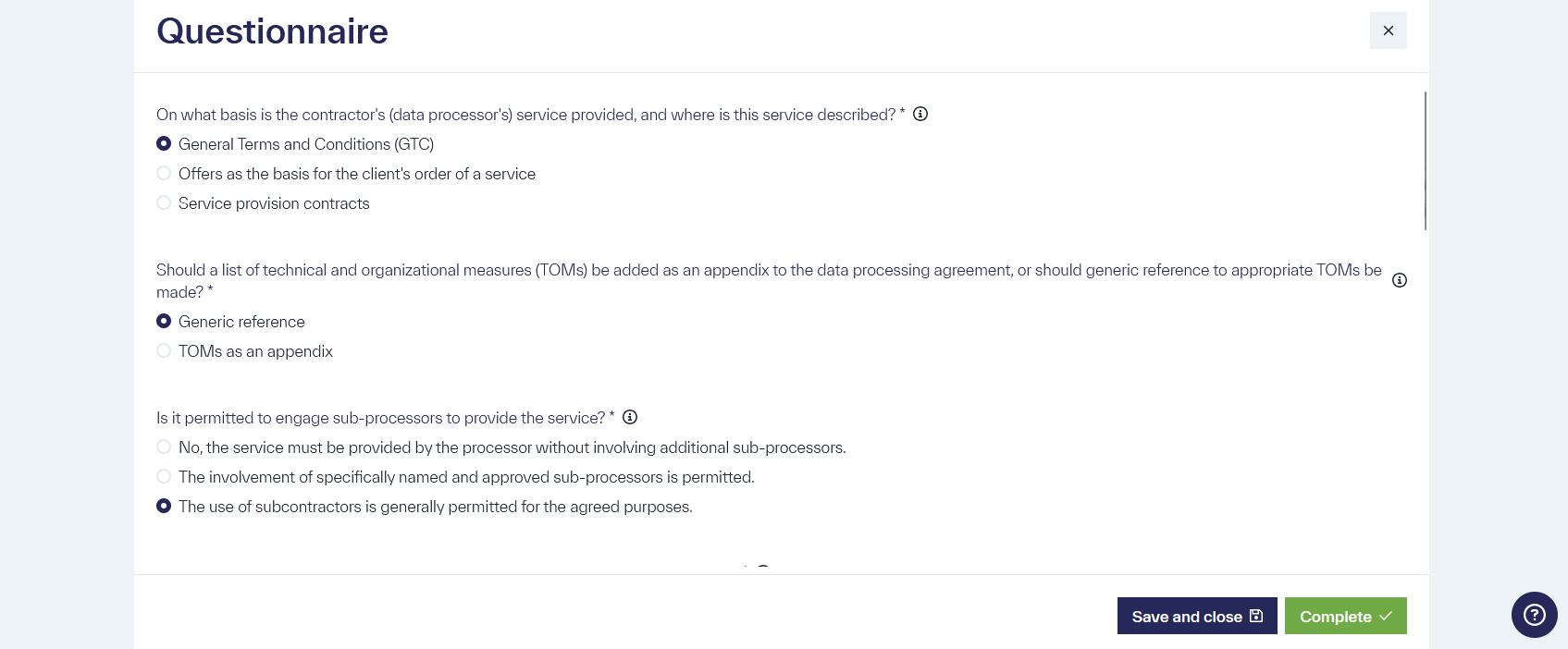
In the questionnaire, mandatory fields are marked with an asterisk (*). Until all mandatory fields are completed, the questionnaire cannot be fully finalized, and an Imprint cannot be generated.
Some input fields include an information icon (🛈), which displays additional guidance and instructions for answering the question when hovered over. Certain fields are also displayed dynamically, depending on previously made selections.
Clicking the blue “Save and Close” button at the bottom of the screen allows the questionnaire to be paused and the current status saved. The status of the questionnaire is “Draft.”
Once all required entries are completed, the questionnaire can be finalized by clicking the green “Complete” button at the bottom of the screen. The status of the questionnaire then changes to “Completed.”
To generate a DPA, the questionnaire must have the status “Completed.”
When the questionnaire has the status “Completed,” the DPA document can be generated in step 2 by clicking the “Edit” icon.
Preview of the DPA with each section individually editable via the “Edit” icon in the top-right corner of the respective section, similar to privacy notices.
The entire content of the DPA must be carefully reviewed to ensure compliance with the intended requirements, as the controller is responsible for the content. Once all sections are reviewed and approved, the DPA is saved by clicking the “Save and publish” button.
After “Save and publish,” the DPA document is marked as “Active,” and the Imprint can be used, for example, on websites.
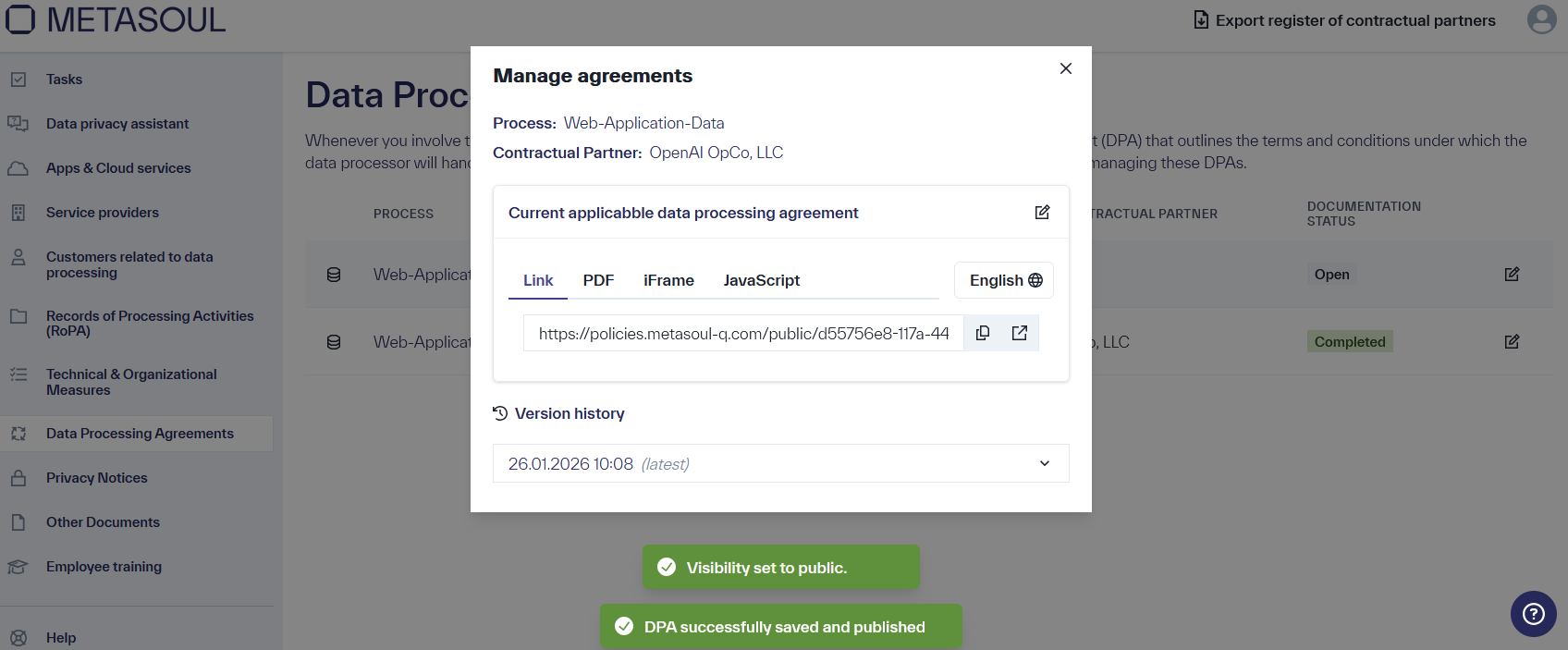
The AVVs generated in the “Data Processing Agreement” module provide various options for making them externally accessible or embedding them into another website.
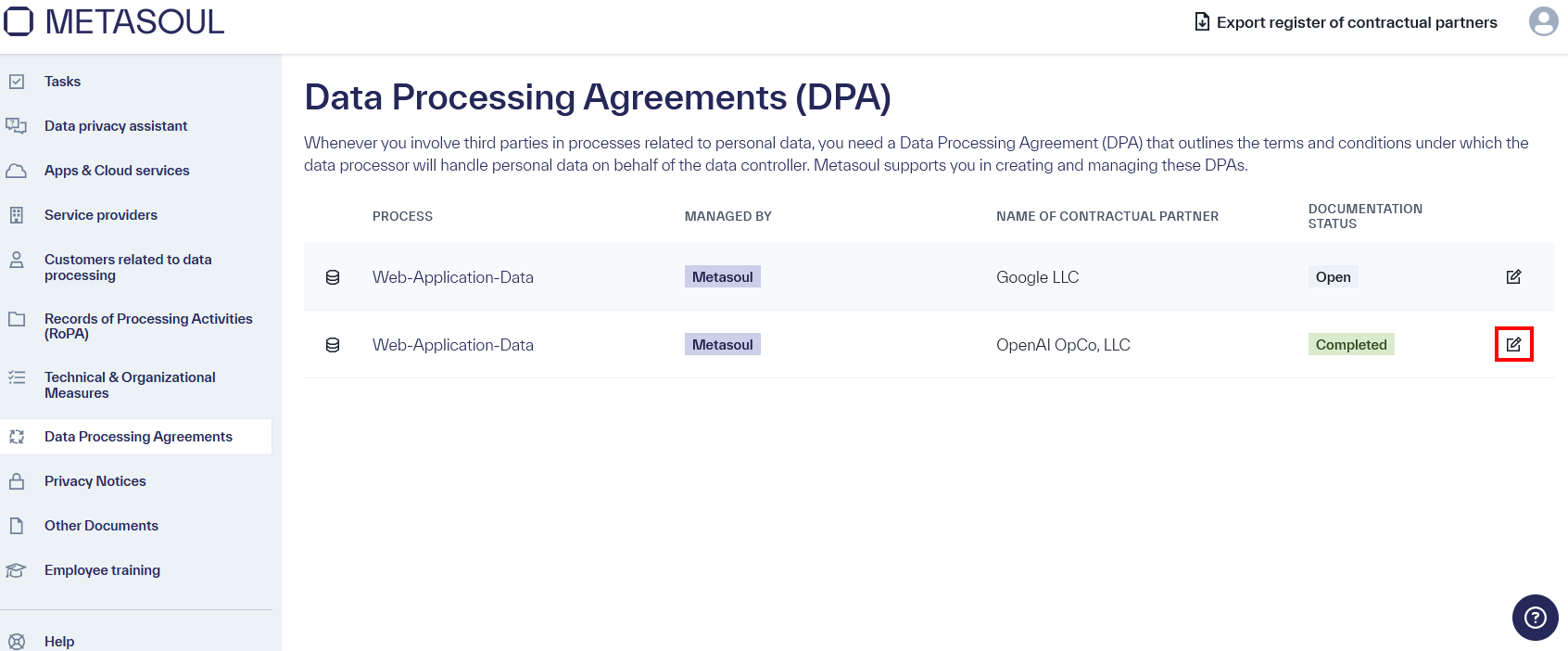
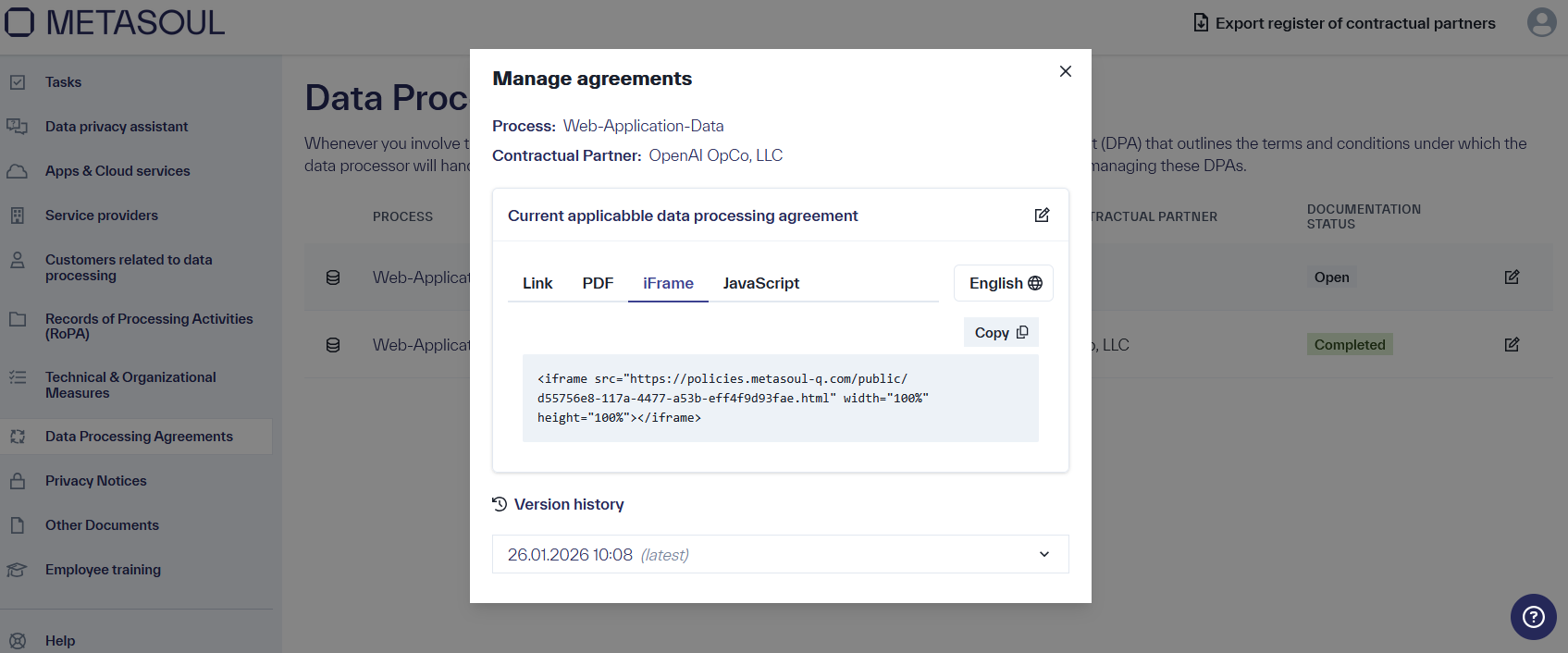
By clicking the “Edit” icon, a window titled “Manage Data Processing Agreements” opens, offering four options under the section “Currently applicable Data Processing Agreement” for downloading or embedding the DPA. Embedding on a website functions in the same way as with a privacy notice, as described here.
If a Data Processing Agreement (DPA) with a customer or processor already exists, it can be uploaded or linked in Metasoul for management.
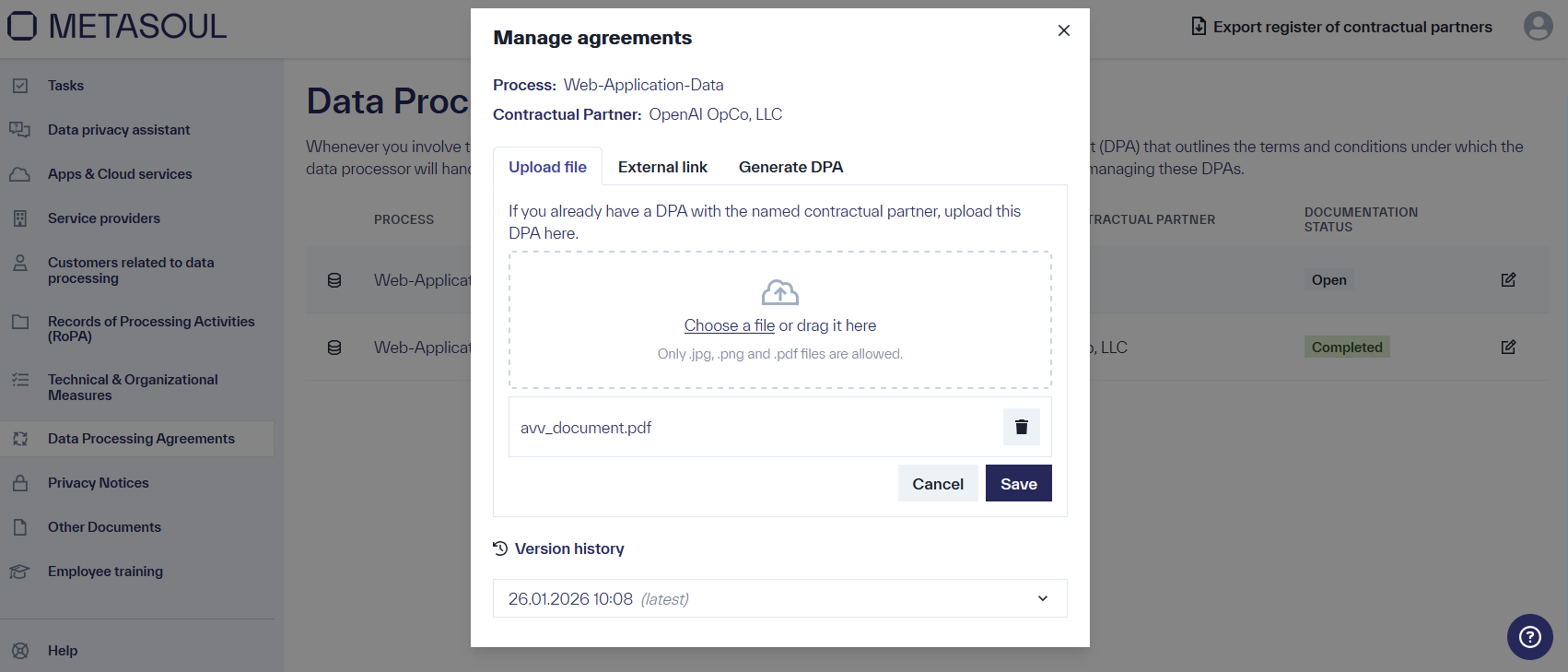
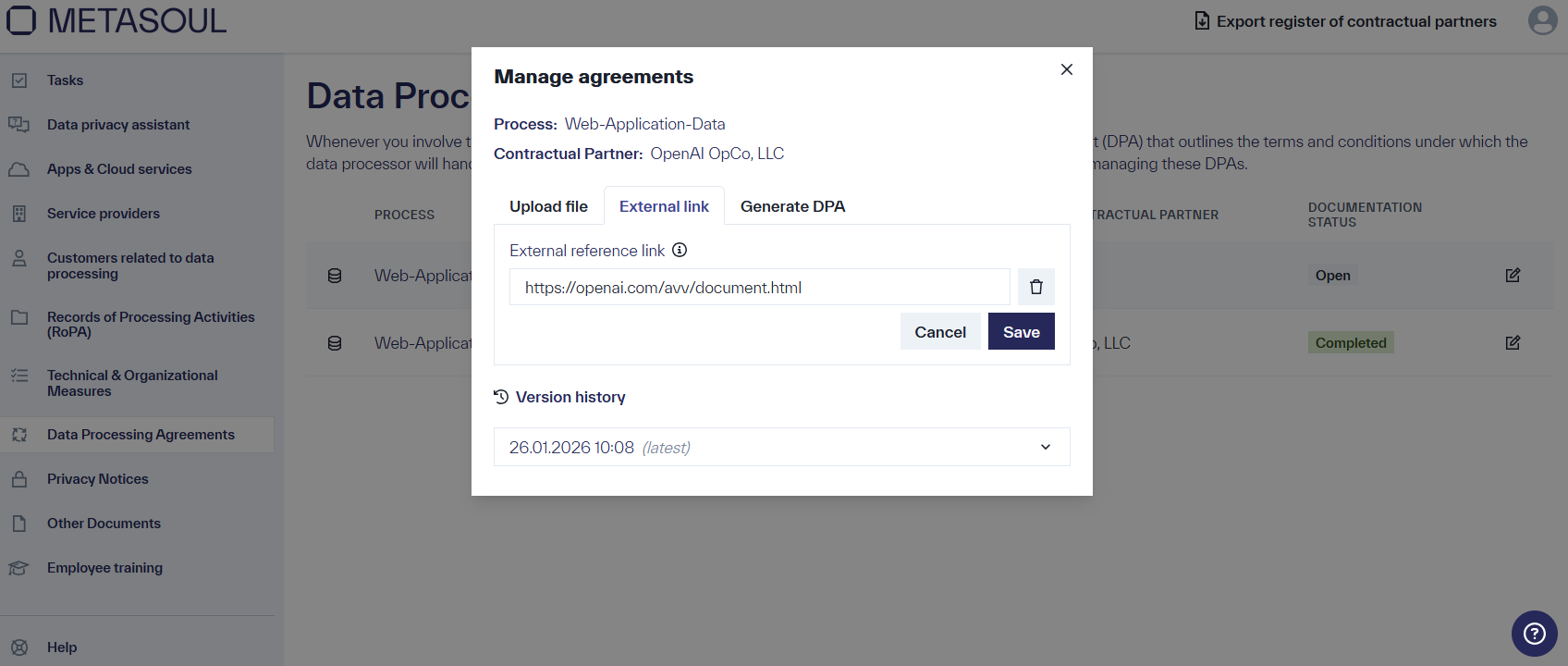
Select the respective partner in the DPA module and then choose either “Upload file” or “External link.”
After selecting the “Upload file” tab, a field with a cloud icon is displayed. The desired file can be dragged and dropped into this field. Alternatively, clicking the “Choose a file” option opens a window to select the file.
After selecting the “External link” tab, an input field labeled “External link” is displayed, where the link to the DPA can be entered. Saving is performed using the “Save” option.
A Data Processing Agreement created with Metasoul requires signature by the contracting parties. How to proceed
A DPA does not always require a signature but may be necessary in certain cases to confirm acknowledgment by both parties.
When a Data Processing Agreement is created with Metasoul and includes a signature field at the end of the document, signing is recommended. The generated DPA can be exported as a document for signature using the following procedure.
Select the relevant entry containing a Data Processing Agreement generated by Metasoul and click the “Edit” icon.
In the opened “Edit” dialog, select the “PDF” tab and open the linked PDF using the “View” icon.
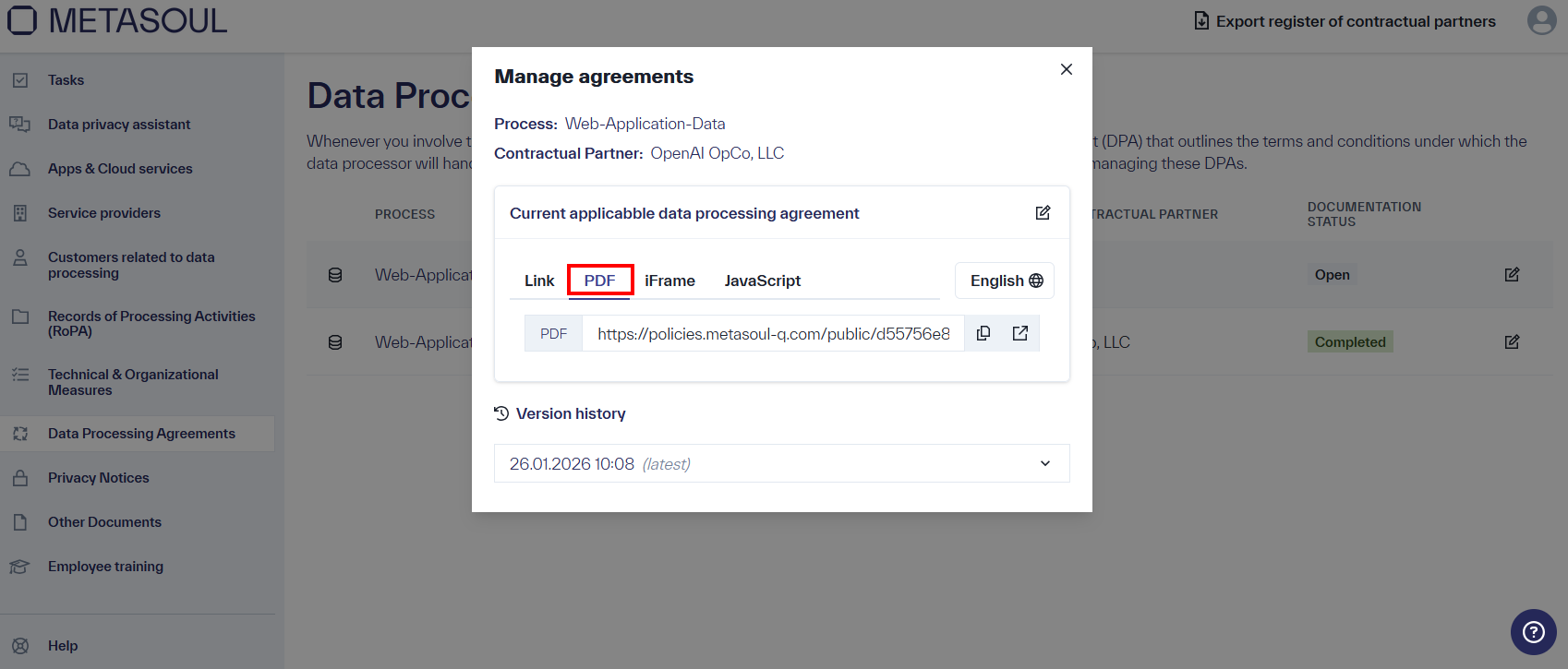
A new browser tab opens, allowing the Data Processing Agreement to be downloaded.
If adjustments to the appearance of the DPA are required, the text can be copied into any text editor, reformatted, and then saved as a PDF.
The DPA can now be signed digitally or printed and signed manually by the contracting parties.
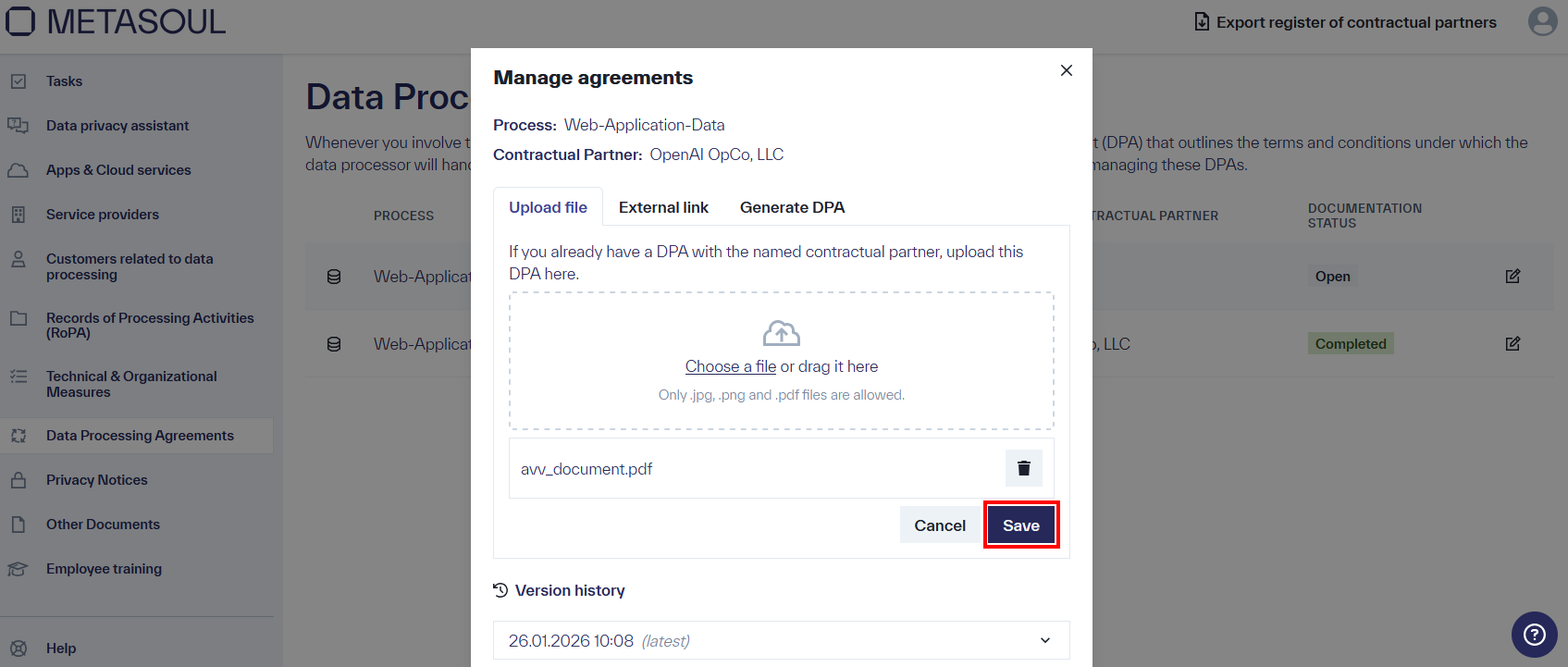
Once the original document is signed, it can be uploaded in the Metasoul DPA module using the “Upload file” option in edit mode and saved as the active version.
Important: If the DPA is modified, the described process must be performed again.