
Company Settings
From the homepage, the user menu can be accessed via the profile icon in the upper right corner. Selecting the “Organization” option then leads to the company settings.
If access through the menu is not possible, the company settings can alternatively be accessed directly via the following link: https://login.metasoul.com/profile/company
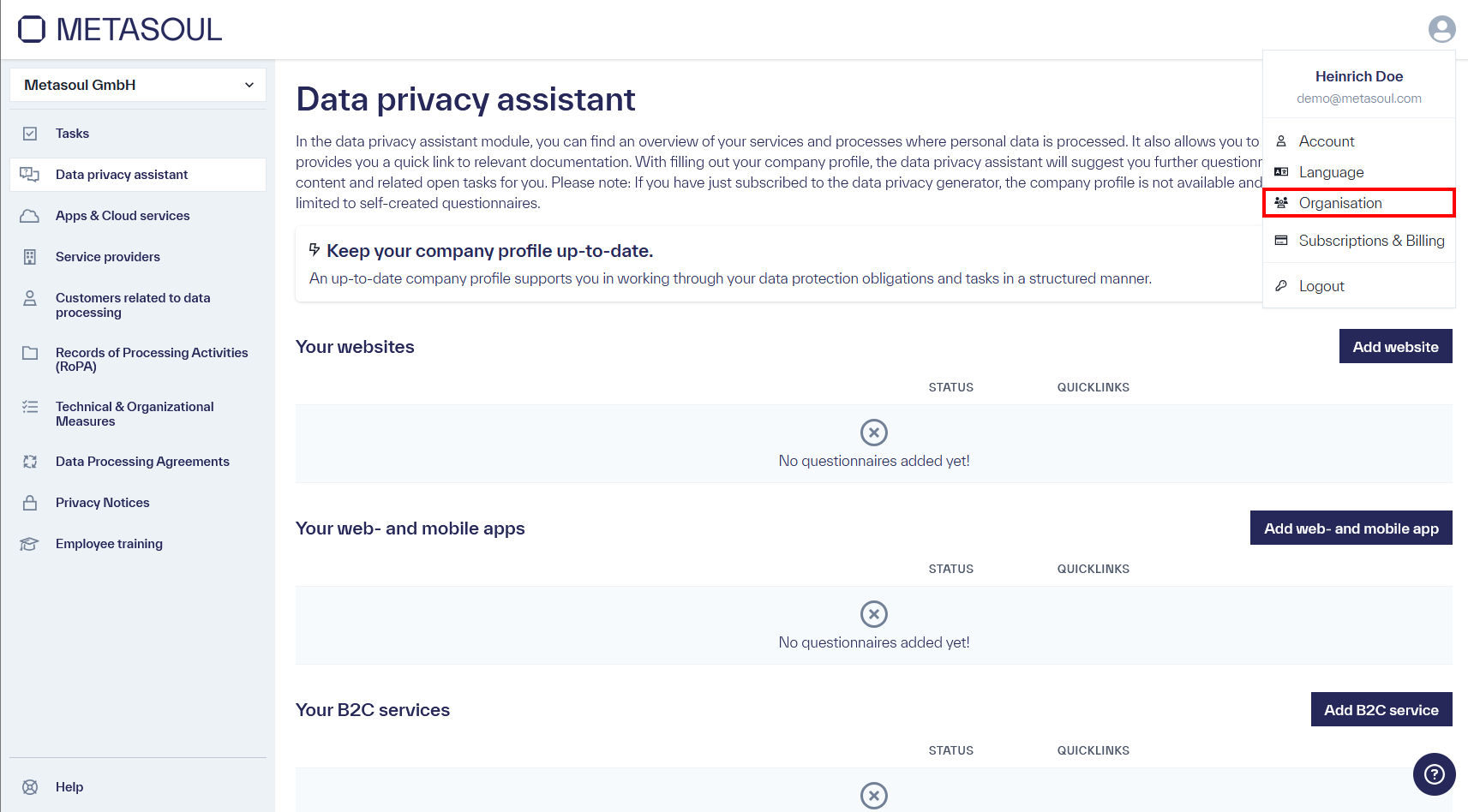
In the “Company Information” tab, company details can be managed.
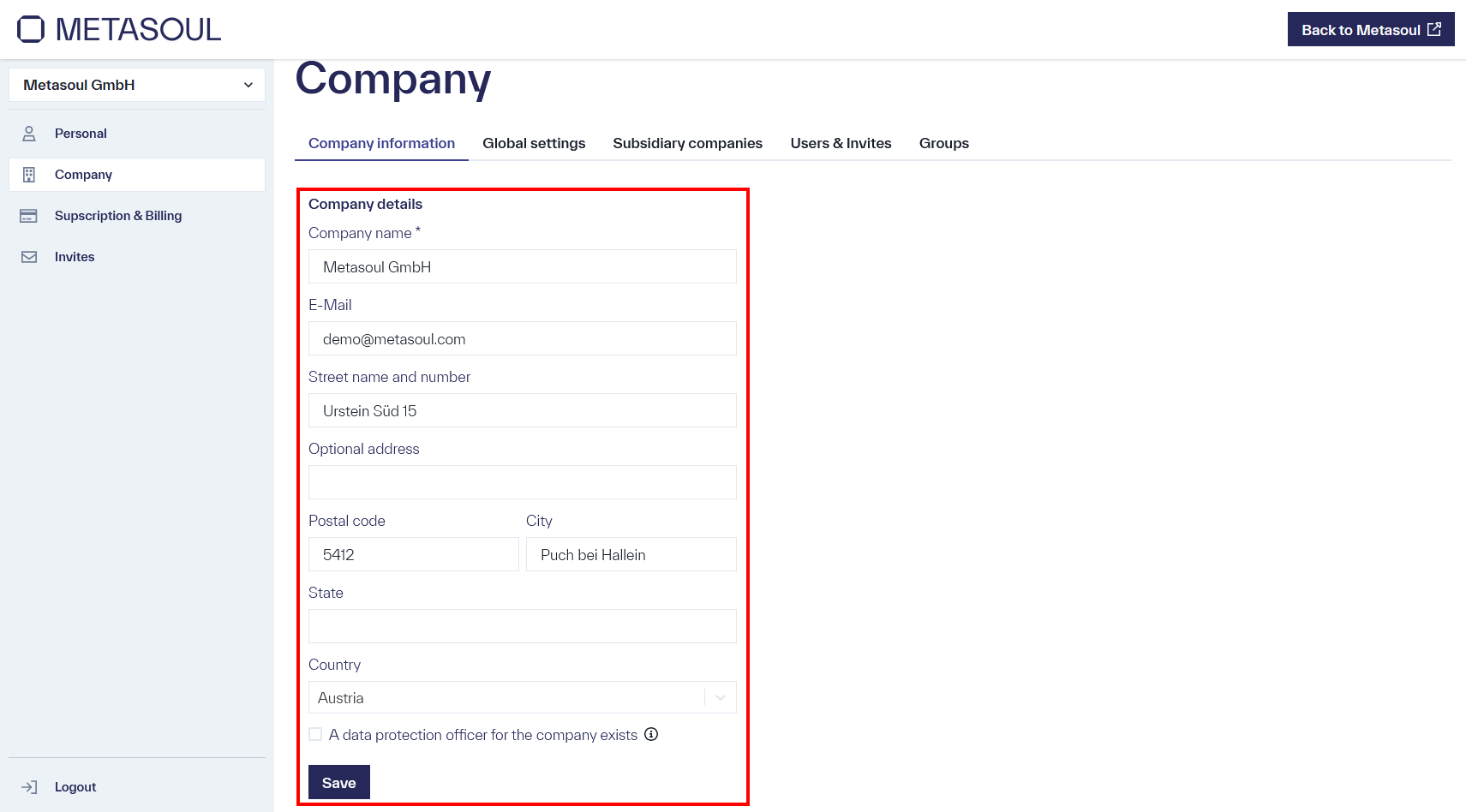
Note: Remember to save any changes you make after modifying the information.
From the homepage, the user menu can be accessed via the profile icon in the upper right corner. Selecting the “Organization” option leads to the company settings.
If access through the menu is not possible, the company settings can alternatively be accessed directly via the following link: https://login.metasoul.com/profile/company
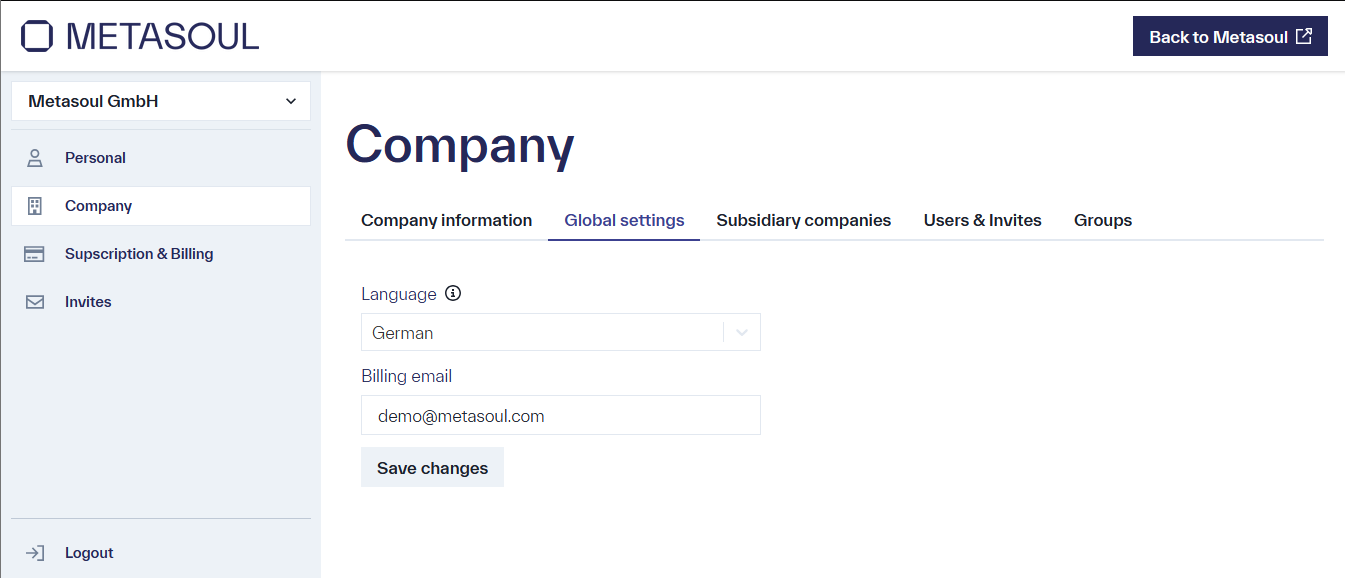
In the “Global Settings” tab, the “Language Settings” field is located.
After selecting the desired language, changes must be applied using the “Save Changes” button.
From the homepage, the user menu can be accessed via the profile icon in the upper right corner. Selecting the “Organization” option leads to the company settings.
If access through the menu is not possible, the company settings can alternatively be accessed directly via the following link: https://login.metasoul.com/profile/company
In the “Subsidiary companies” tab, the “Add Company” option is available.
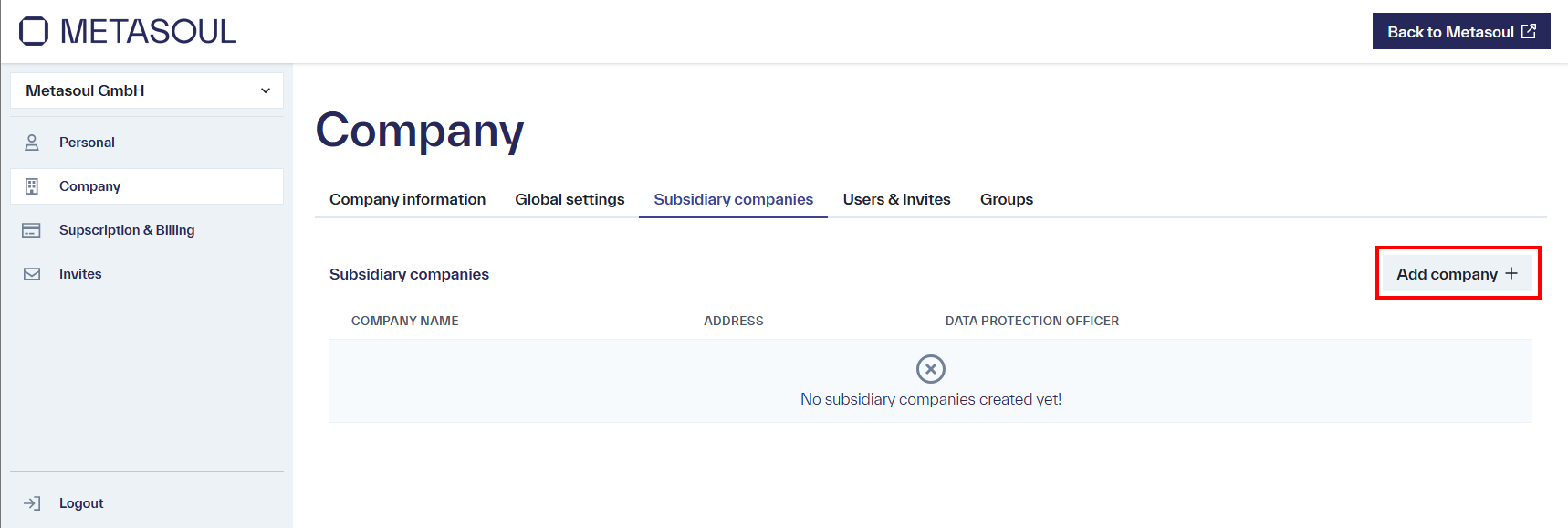
Selecting this option opens an input form in which the data of the new subsidiary can be entered.
After entering all required information, the creation of the subsidiary is confirmed by clicking the “Create” button.
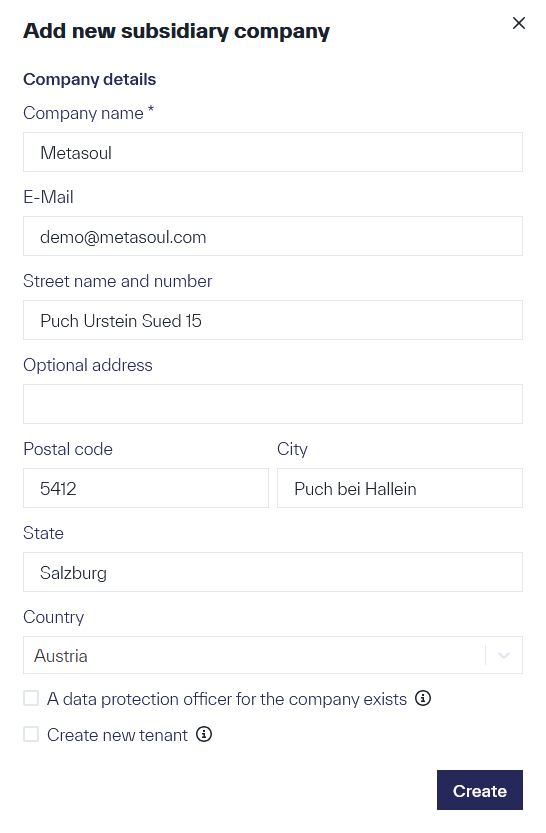
From the homepage, the user menu can be accessed via the profile icon in the upper right corner. Selecting the “Organization” option leads to the company settings.
If access through the menu is not possible, the company settings can alternatively be accessed directly via the following link: login.metasoul.com/profile/company
Navigate to the “Subsidiary companies” tab and click on “Add Company” if no subsidiary exists yet. If a subsidiary has already been created and a separate Metasoul tenant is to be set up for it, the edit icon in the “Actions” column can be used.
In the input menu, information about the subsidiary can be entered if applicable. To create a tenant, the option “Create New Tenant” must be activated, followed by clicking “Create” or “Save”.
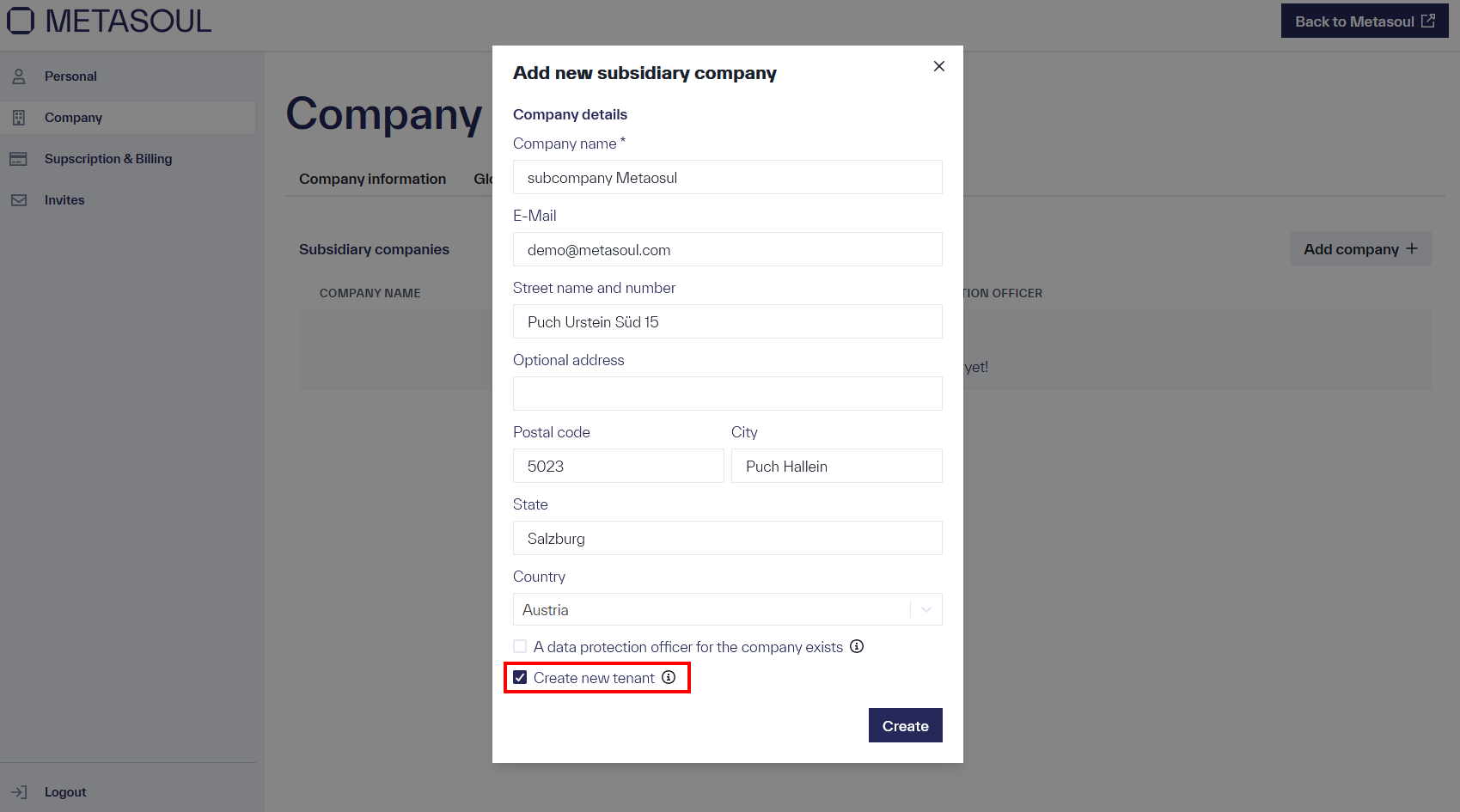
After saving, the new tenant or subsidiary is displayed both in the overview of subsidiaries and in the dropdown menu in the upper left area of the screen.
To switch to the tenant or account of a subsidiary for management purposes, the relevant subsidiary is selected in the drop-down field at the top left of the screen.