Records of Processing Activities (RoPA)
What tasks do I need to complete in the processing activities directory, and which tasks are handled by Metasoul?
In general, Metasoul takes care of initiating the creation of relevant entries in the Record of Processing Activities (RoPA) based on the answers provided in the company profile and various question catalogs.
When a question catalog is completed in the Data Privacy Assistant, a new entry is automatically created in the Record of Processing Activities and populated based on the answers provided in the catalog.
The following tasks must be completed on the Metasoul user page:
-
Regularly check the entries in the Record of Processing Activities as well as the record itself for accuracy and completeness. Metasoul will regularly create a corresponding task for this.
-
Fill in the deletion rules. If necessary, Metasoul will create a task for this as well.
In brief: Metasoul automates the creation and maintenance of the Record of Processing Activities as much as possible, minimizing the effort required from users. If any action is required, Metasoul will notify the user with a task and detailed instructions.
If there is a need for a custom entry in the RoPA, it can be created as follows.
Click “Create Entry” in the top right of the “Record of Processing Activities (RoPA)” module. You can now choose between “Create new record” and “Choose record template.”
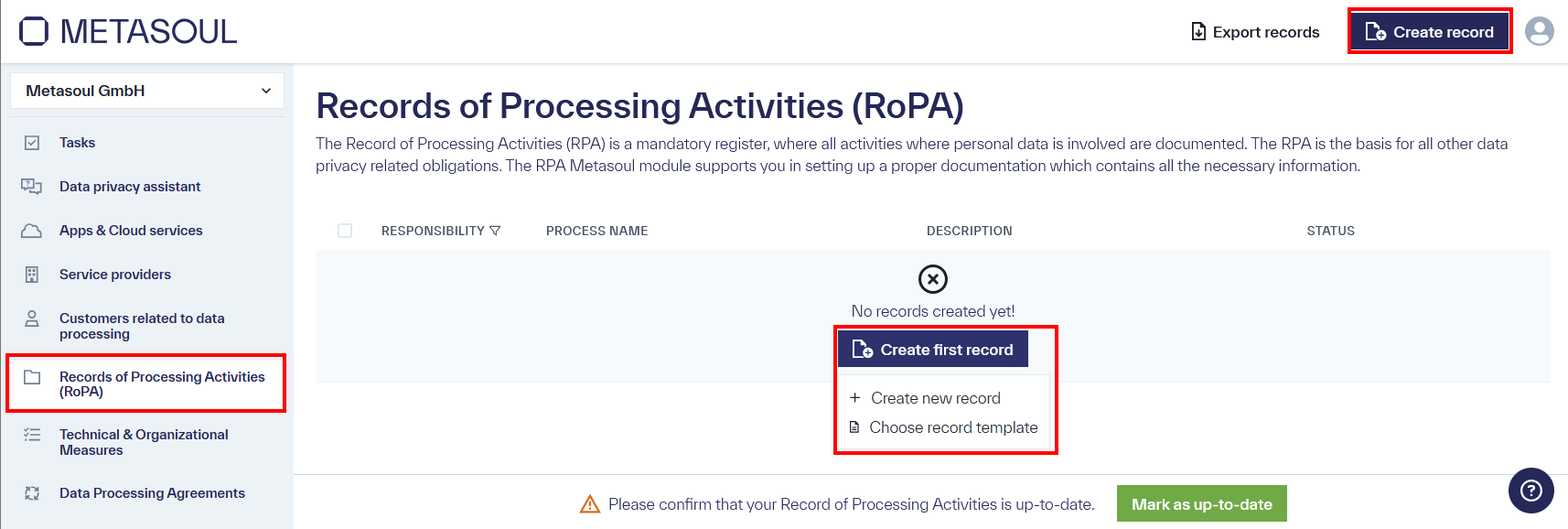
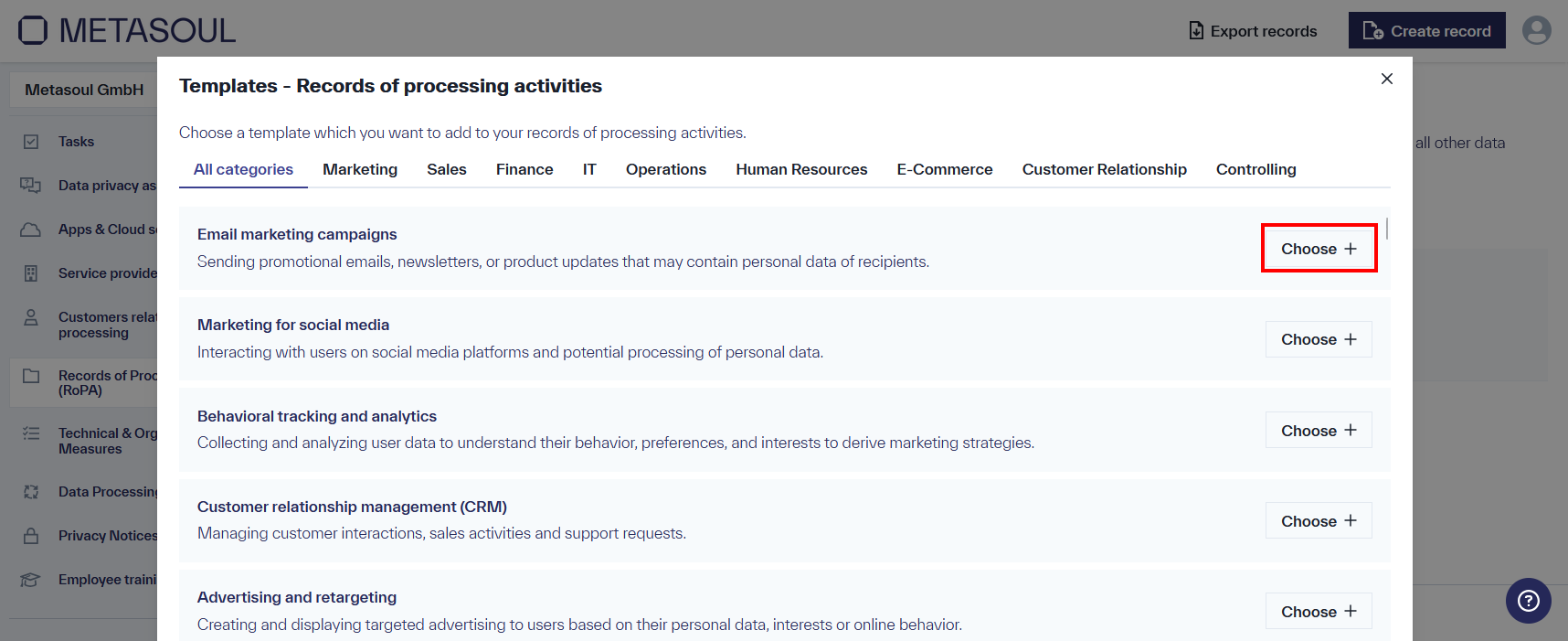
If “choose record template” is chosen, a menu will open, allowing the selection of a template in which a process and process description are already filled out. The overview of processes can also serve as inspiration for identifying new data protection-relevant processes that affect the company.
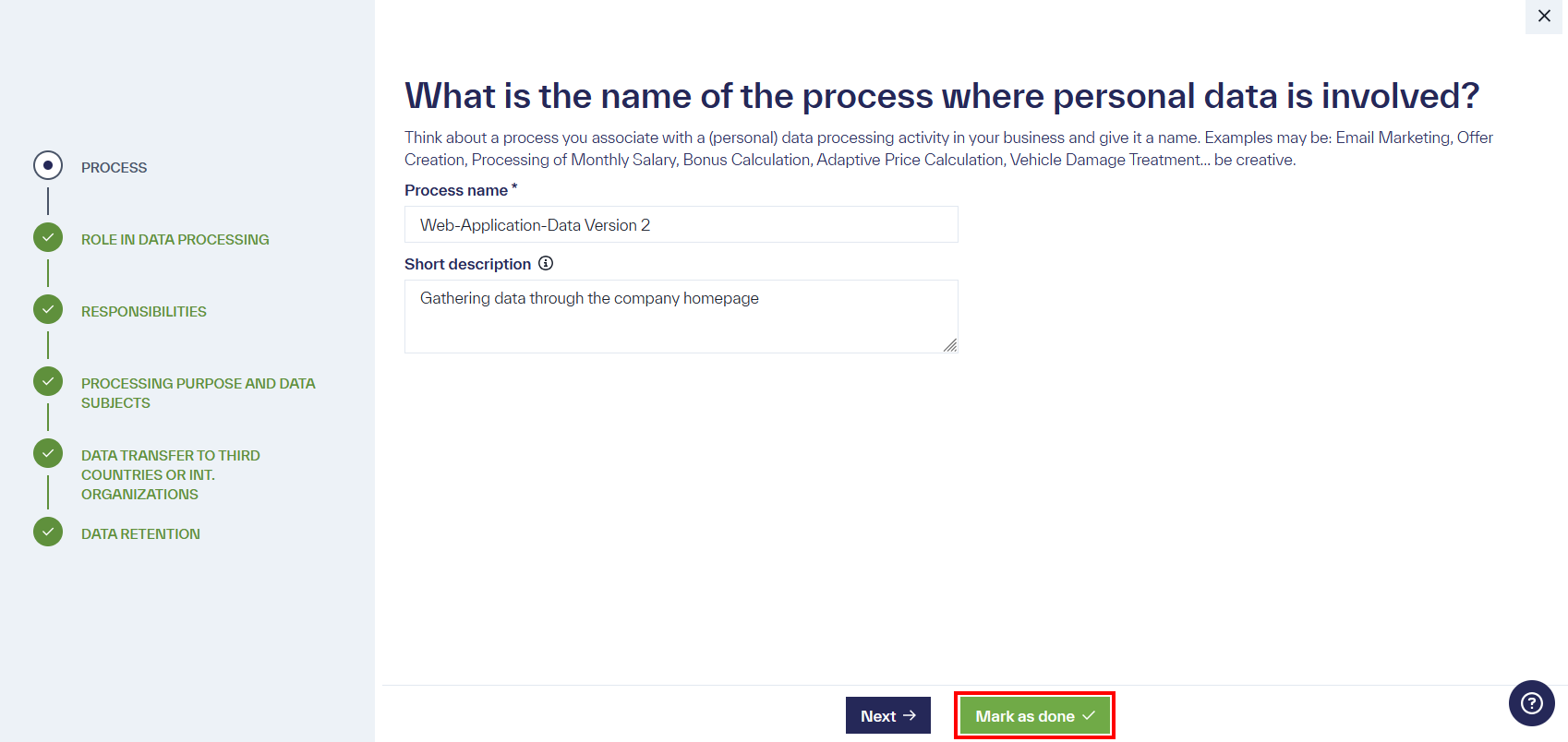
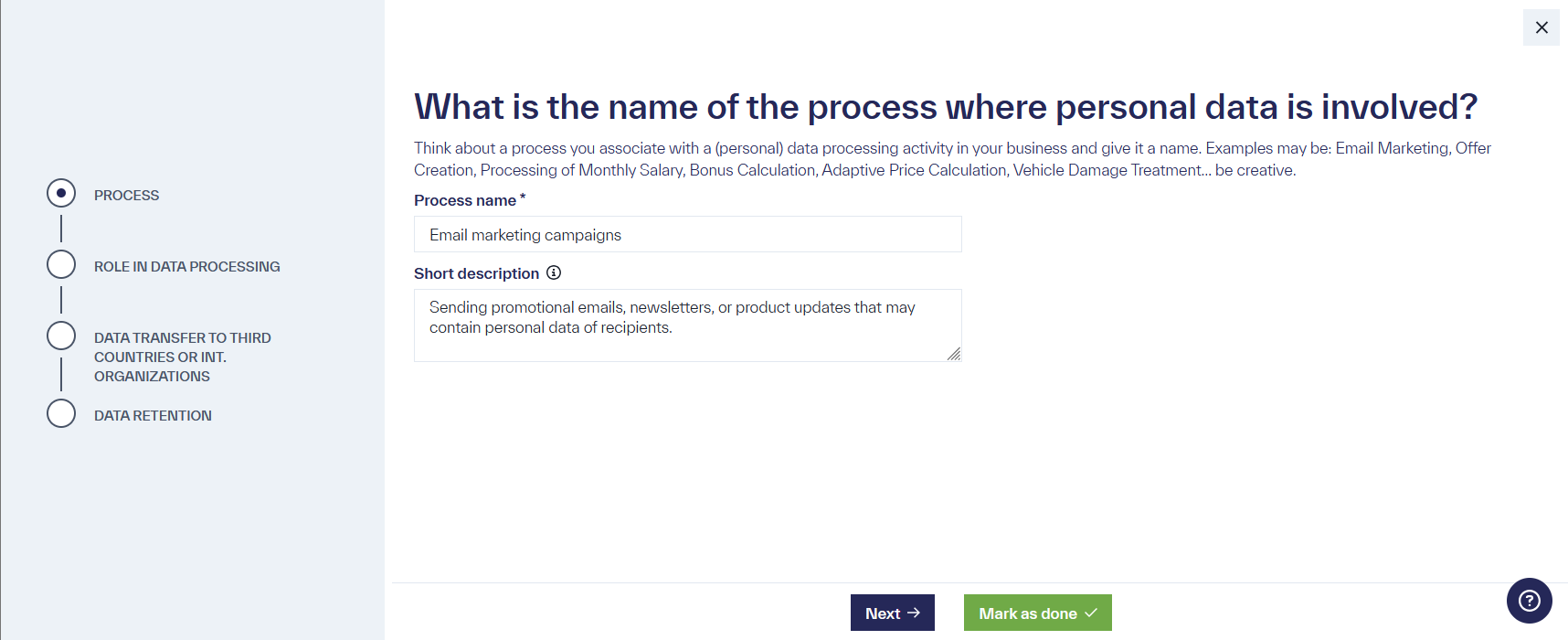
After selecting a template or if “create new record” was initially chosen, a “Stepper” will appear in which all relevant data is entered in a structured manner. The “Next” button moves to the next step. The “Mark as done” button confirms the full entry of a step and concludes it.
Important: Once a step is completed, it can no longer be edited. To edit a step, the “undo mark as done” button must be clicked to enter the edit mode.
In the first step “PROCESS”, the process name and a short description are requested. If a template was selected, these fields are already filled out and can be further edited.
In the next step, the responsibility of the company in the process is selected, with the options “Controller” and “Processor” being distinguished. In the following step, it is specified which company is responsible for the respective task.
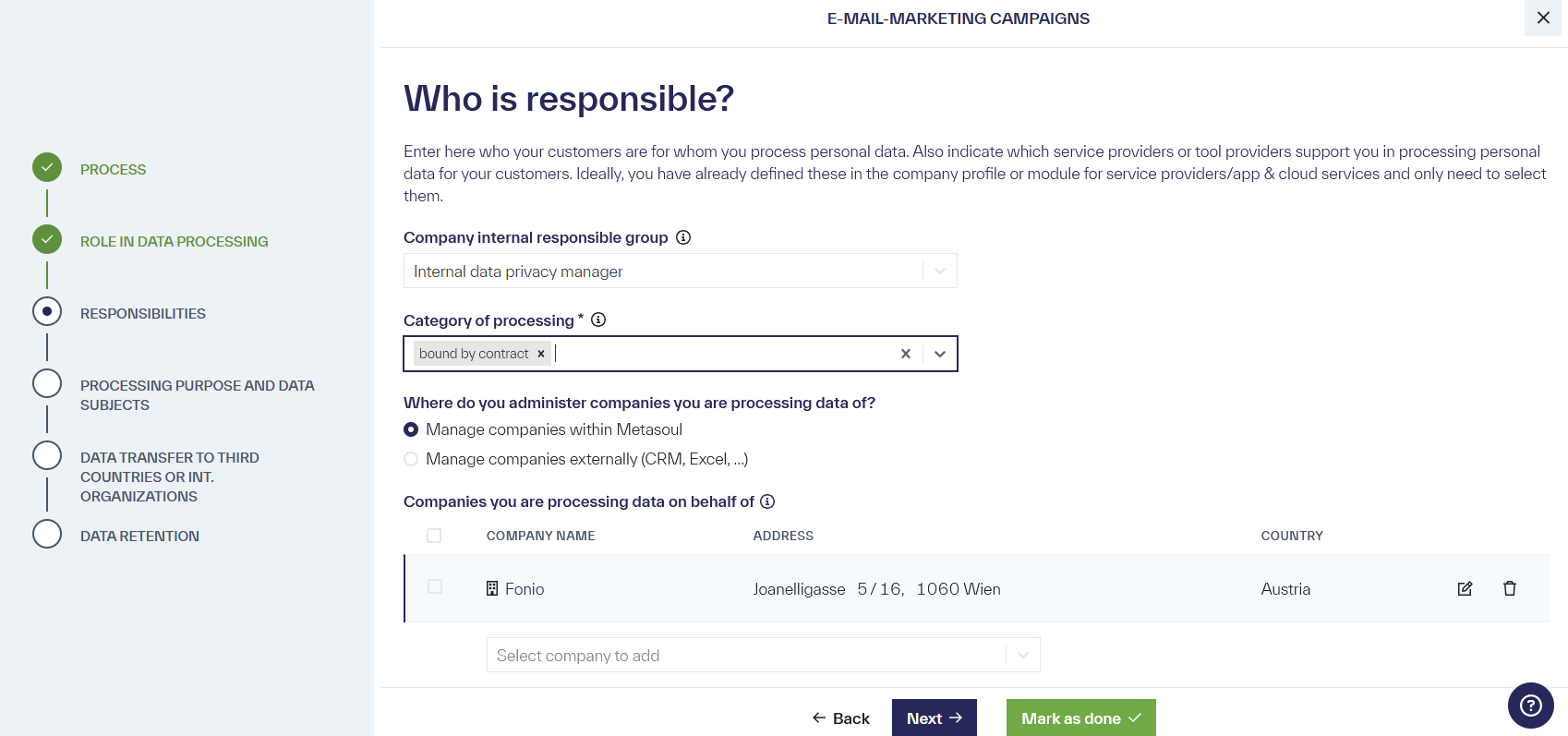
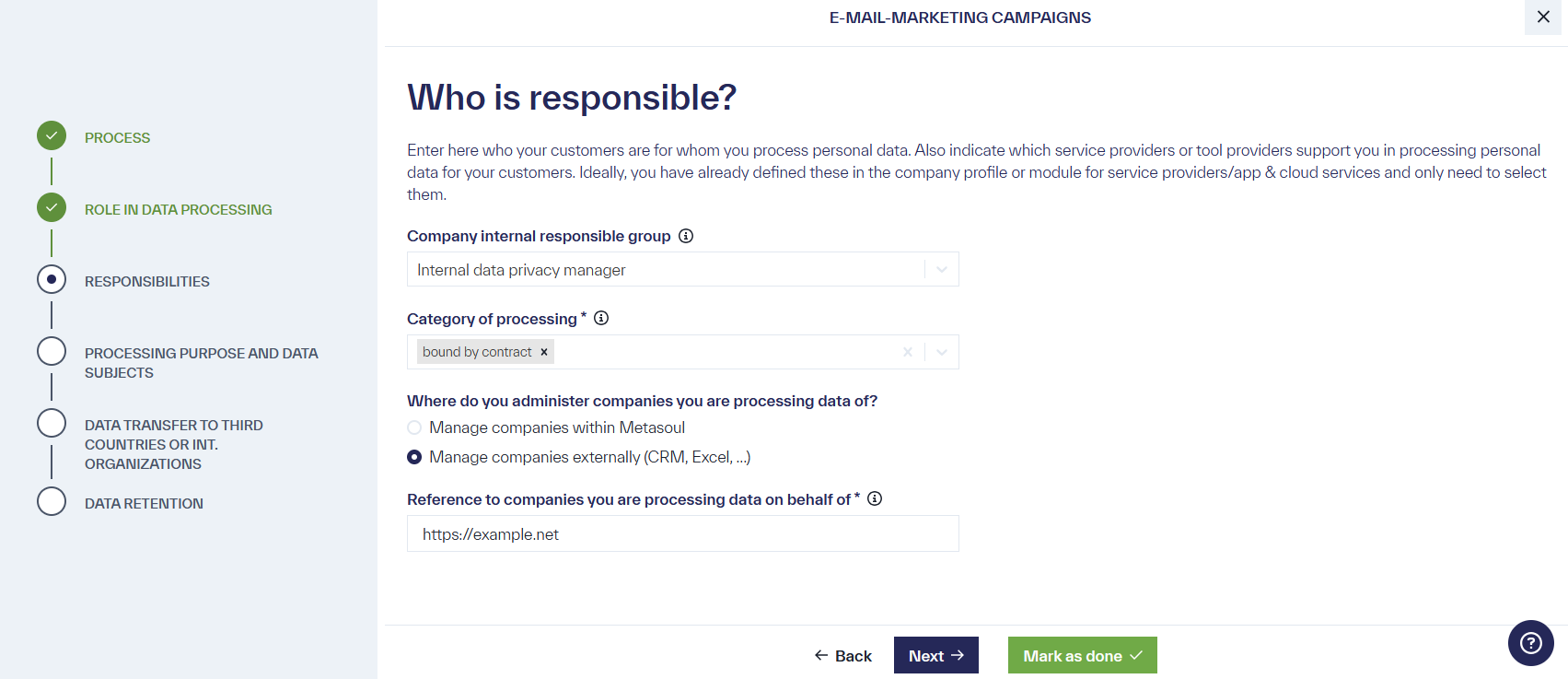
If the role of “Controller” is selected, an optional internal responsibility can be provided in the subsequent “RESPONSIBILITIES” step. This entry is not mandatory and is primarily for internal documentation purposes. If the role of “Processor” is selected, the “RESPONSIBILITIES” step requires the indication of the categories of processing within the process, as well as the location where the responsible companies (clients) are managed.
If the controllers, as defined by the GDPR, are managed in Metasoul, an additional input field will appear where these companies can be listed. This input is relevant, among other things, for the creation of Data Processing Agreements (DPA).
If it is chosen that the controllers are managed at an external location, outside of Metasoul, an input field will appear where this location can be specified in more detail (for example, through a link or another internal company reference).
Important: If the management is chosen to be outside of Metasoul, this will result in the generation of a generic Data Processing Agreement (DPA) in the DPA module, without the precise specification of the controller.
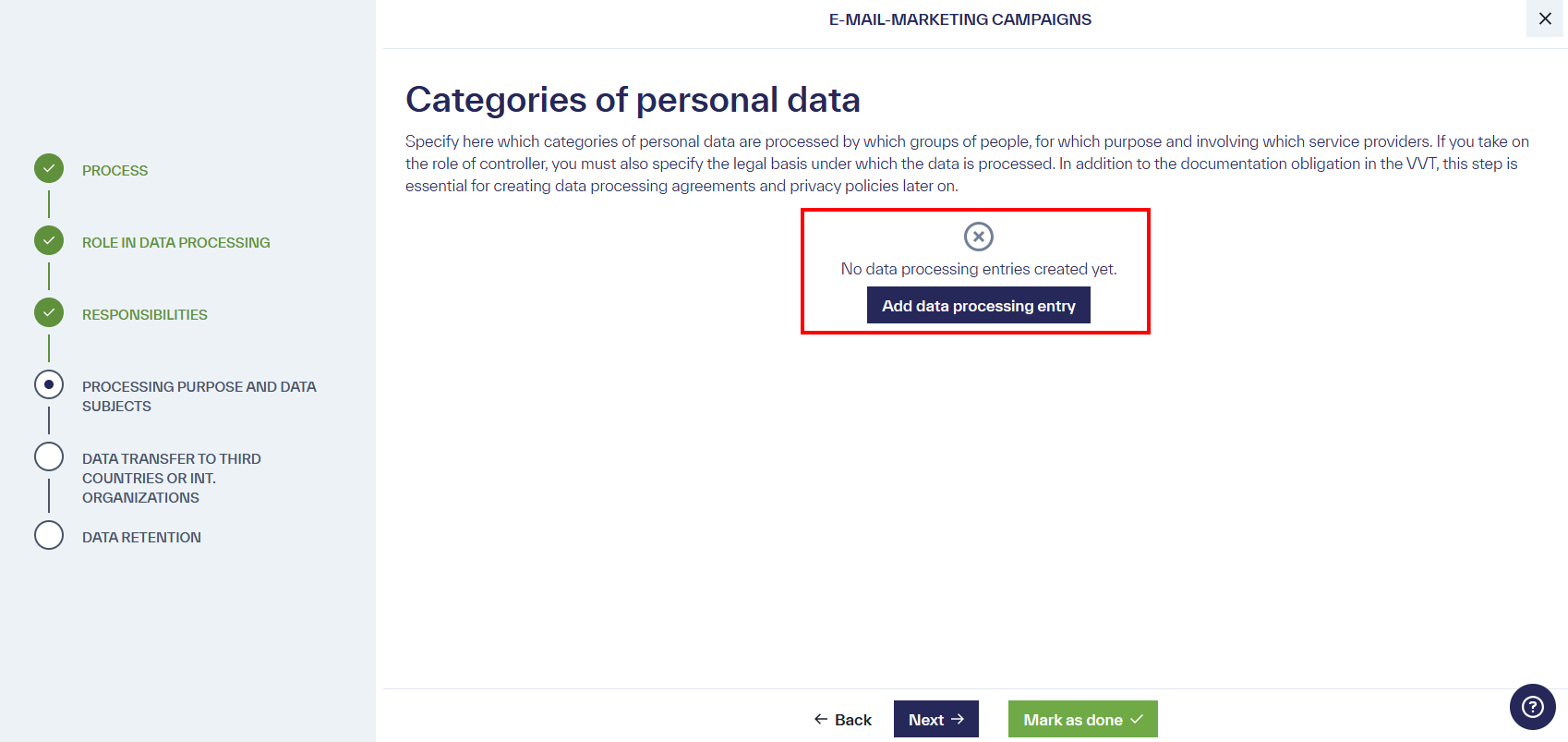
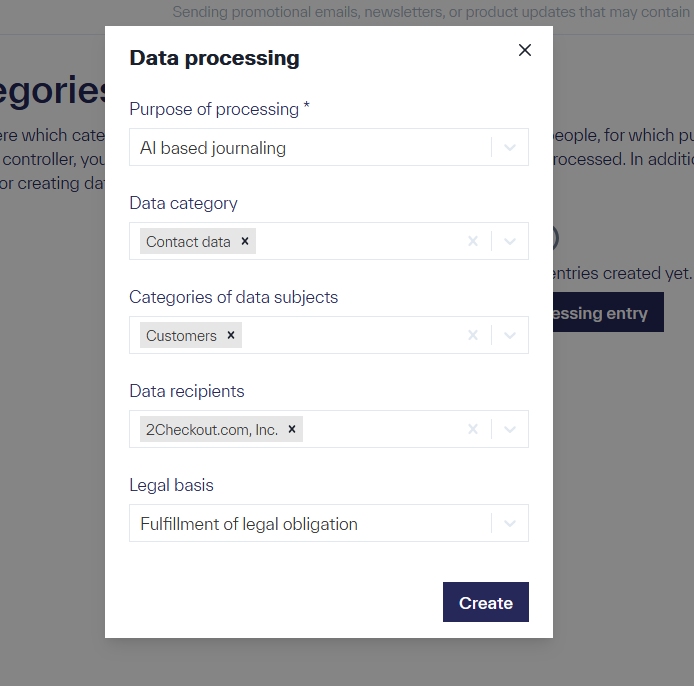
In the next step “PROCESSING PURPOSE AND DATA SUBJECTS”, all purposes of processing are specified. A new purpose is created by clicking the “Add Processing Entry” button.
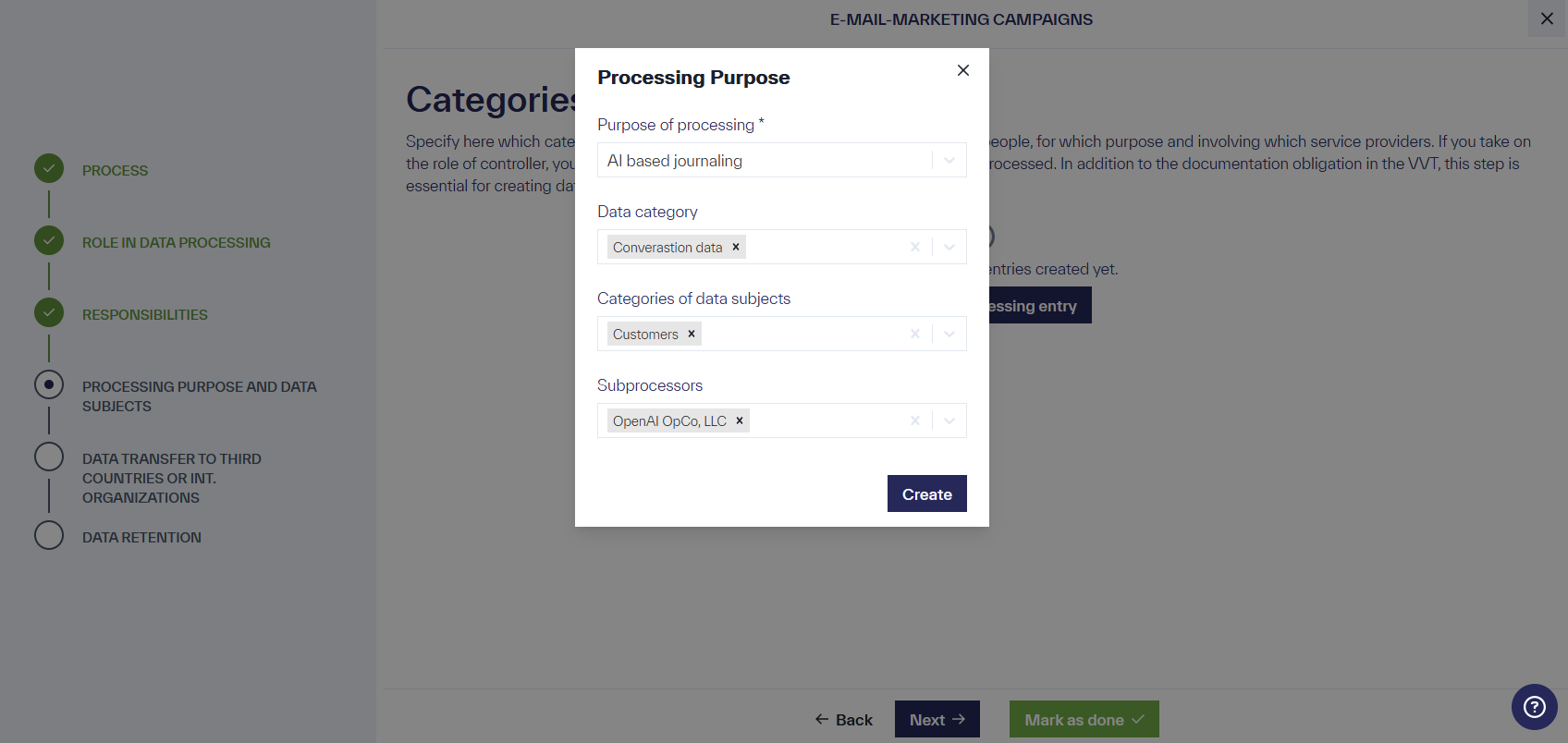
For each purpose, the following information must be provided in the role of the Processor:
-
The categories of personal data (data categories) that are processed for the specified purpose.
-
The categories of data subjects (categories of data subjects) affected by the processing purpose.
-
Optionally, the involved sub-processors who assist in processing personal data for the specified processing purpose (sub-processors).
If in the role of the Controller, the following additional information must be provided:
-
The legal basis that allows the processing of personal data for the specified purpose (legal basis).
-
Optionally, other companies with which the responsibility for processing is shared (shared responsibility).
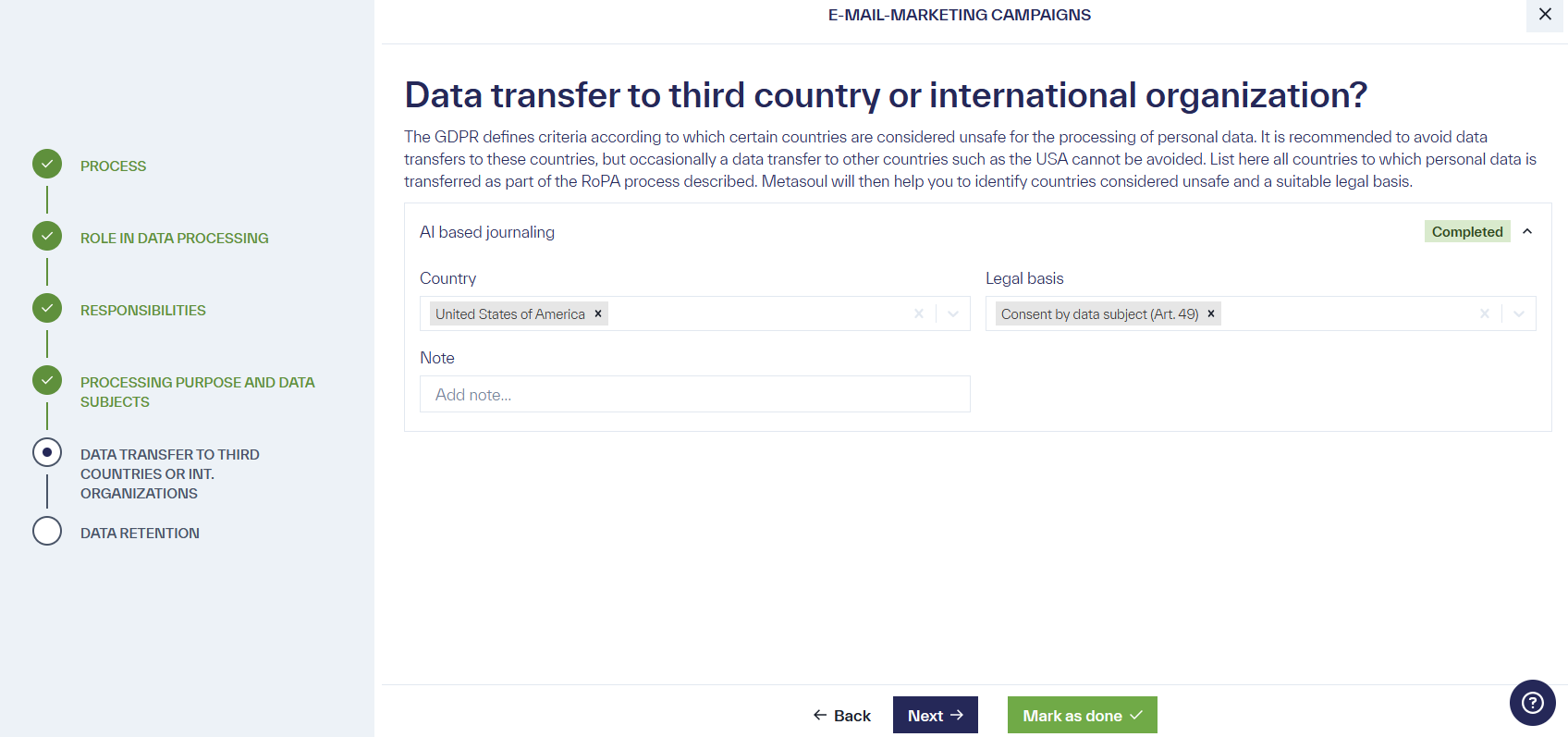
After all processing purposes and the associated relevant information have been defined, in the step “TRANSFER OF DATA TO THIRD COUNTRIES OR INTERNATIONAL ORGANISATIONS”, the countries to which data is transferred for the specified purposes must, if applicable, be indicated, as well as the legal basis under which the data transfer occurs. The countries are typically derived from the location of the processors or other companies and locations within a corporate group.
In the final step “DATA RETENTION”, the deletion date for personal data of data subjects is determined for each processing purpose. Since the GDPR stipulates that personal data may only be stored for as long as it serves a purpose, each data category must have an associated retention period. How to determine retention periods and what to consider in the process is explained here.
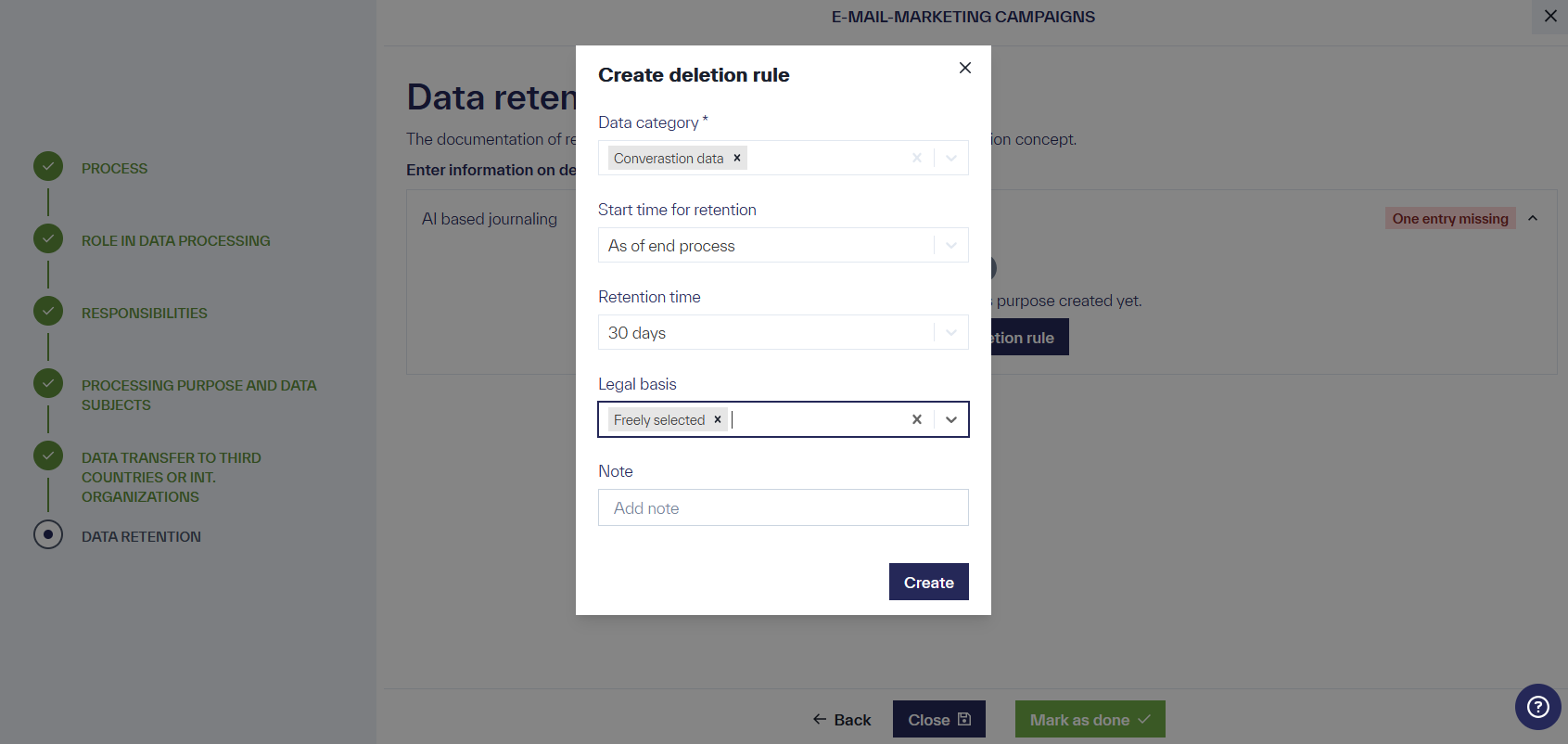
After completing the final step, the editing view can be closed by clicking the “Close” button.
Important: All steps in the RoPA entry must be confirmed using the “Complete Step” button for the RoPA entry to be marked as “Completed”.
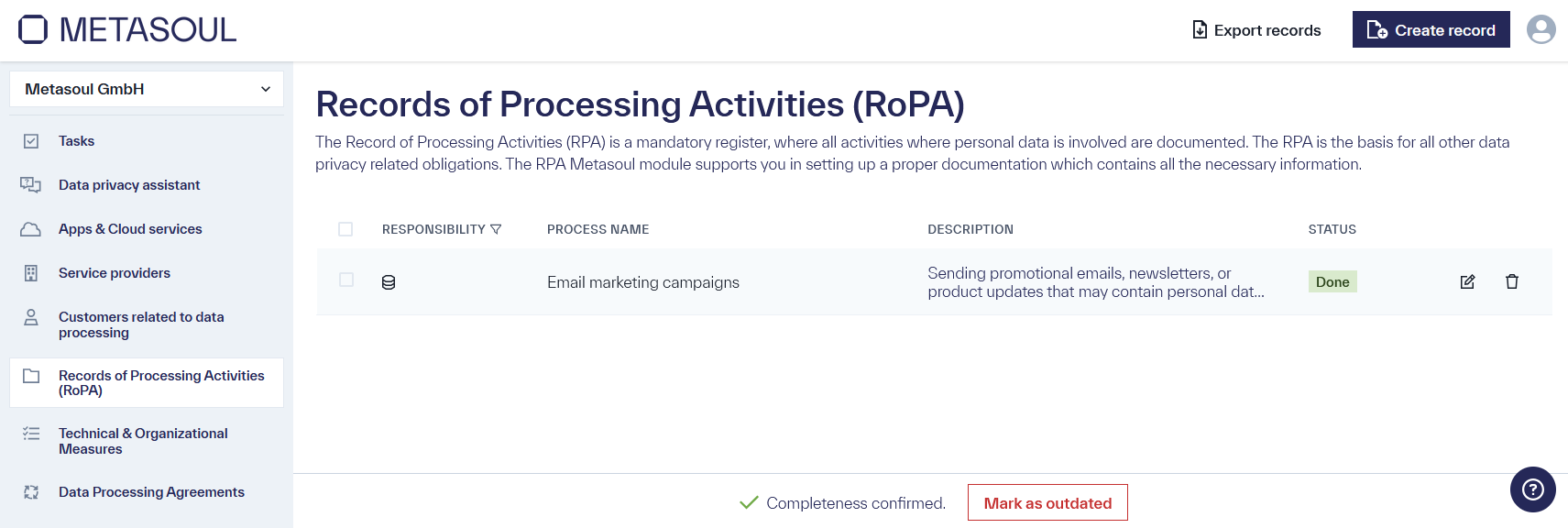
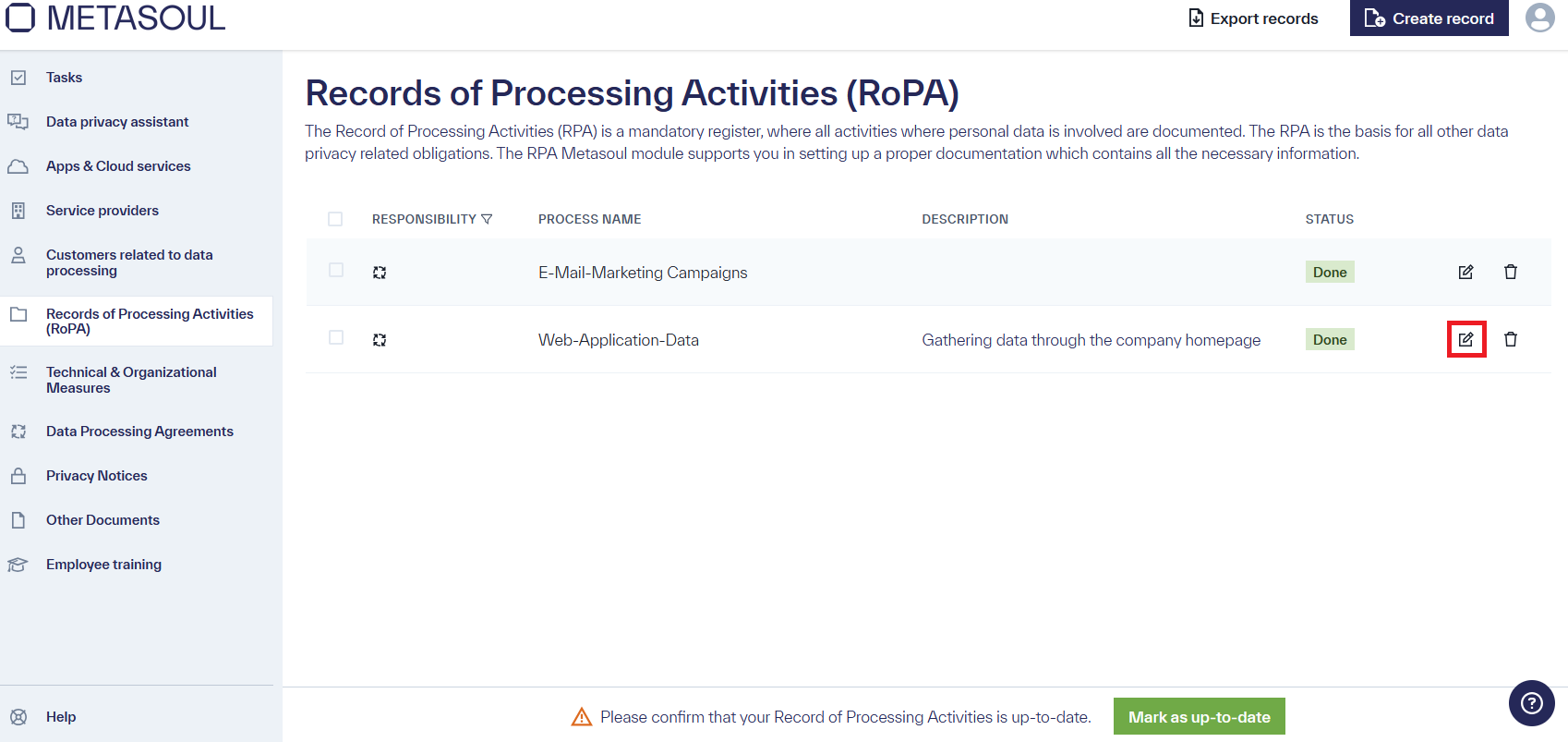
To edit an entry in the Record of Processing Activities, navigate to the relevant module. By clicking the “Edit” icon to the right of the relevant entry, it can be opened in edit mode.
If a step has already been marked as completed, changes can only be made after resetting the step to edit mode by clicking the “Mark Step as Incomplete” button.
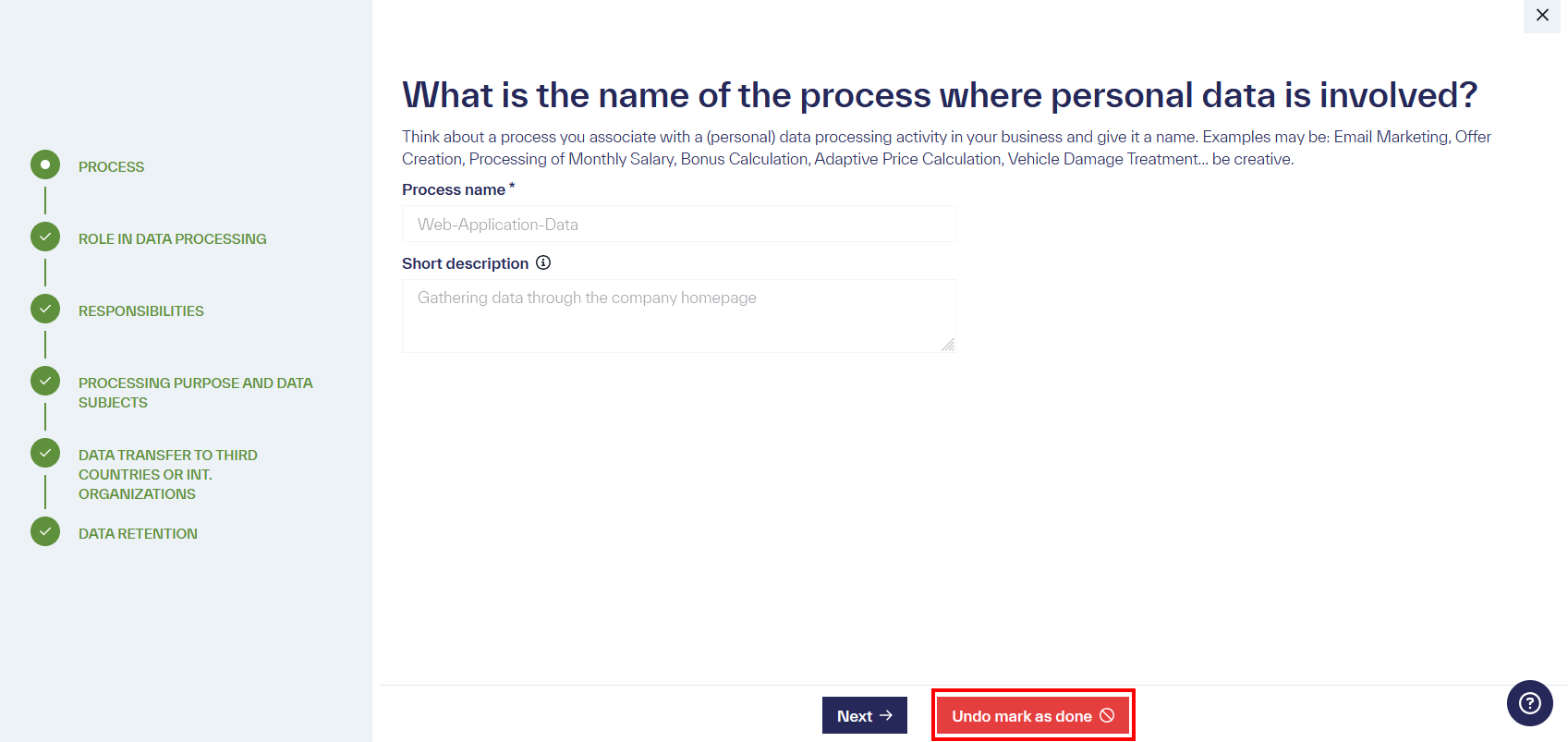
Important: Changes are only applied once they have been confirmed via the “Complete Step” button.