
Personal Settings
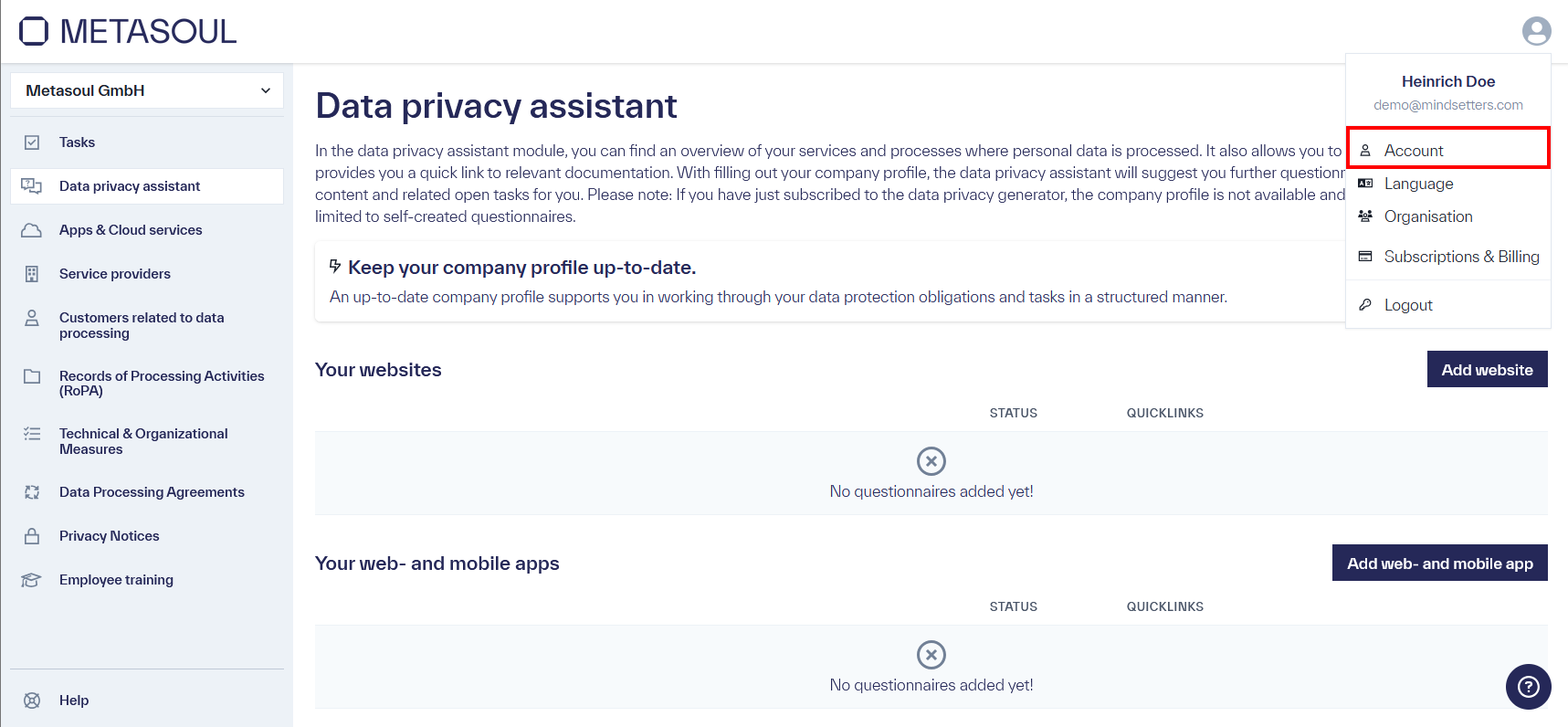
To change the information of the Metasoul account, the “Account” option can be selected via the profile icon in the upper-right corner. Alternatively, access is available via the following direct link: https://login.metasoul.com/profile/personal
The desired information can be modified by updating the corresponding fields.
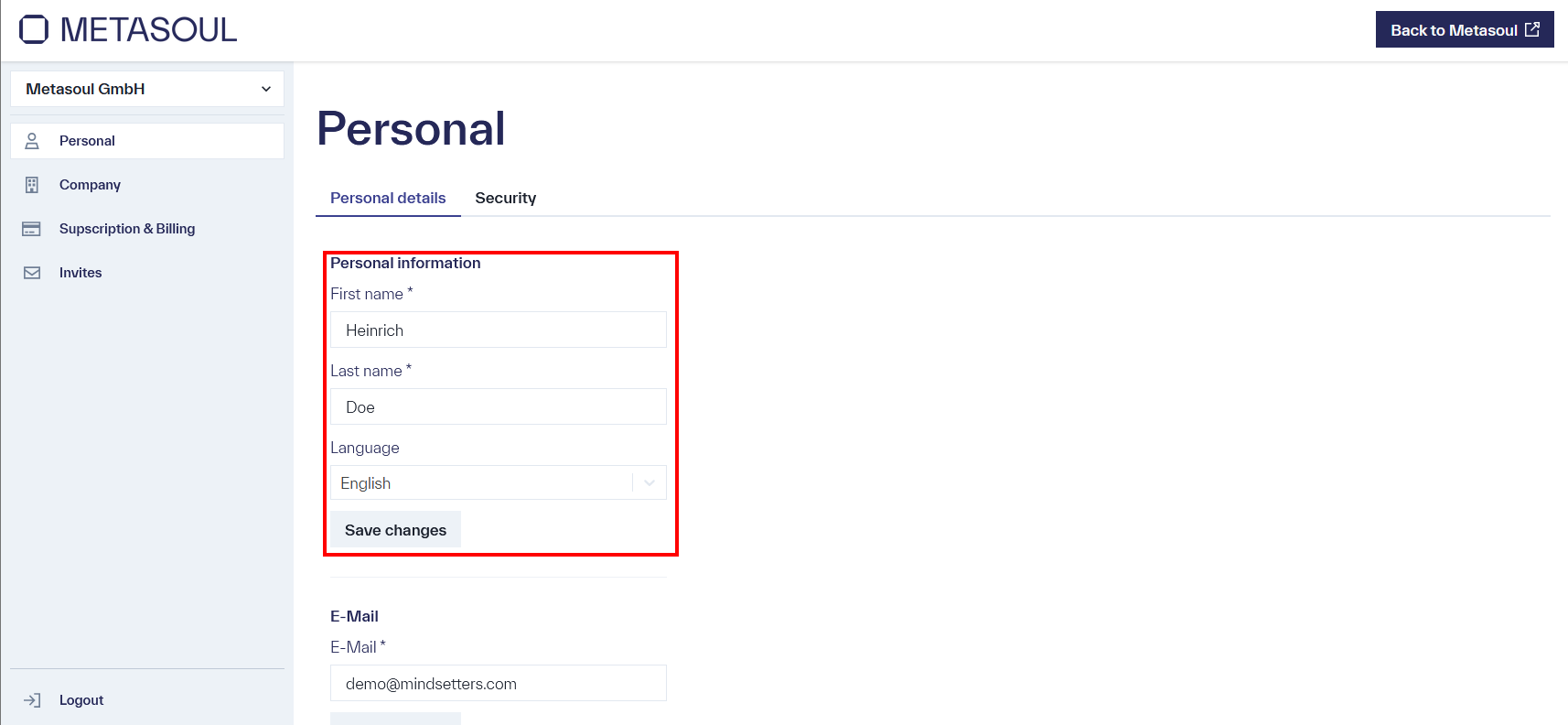
After making changes, it is necessary to save them using the “Save Changes” button to ensure they are applied permanently.
To change the password information, the “Account” option can be selected via the profile icon in the upper-right corner. Alternatively, access is available via the following direct link: https://login.metasoul.com/profile/personal
Next, the “Security” tab can be selected.
There, the input field for changing the password is available.
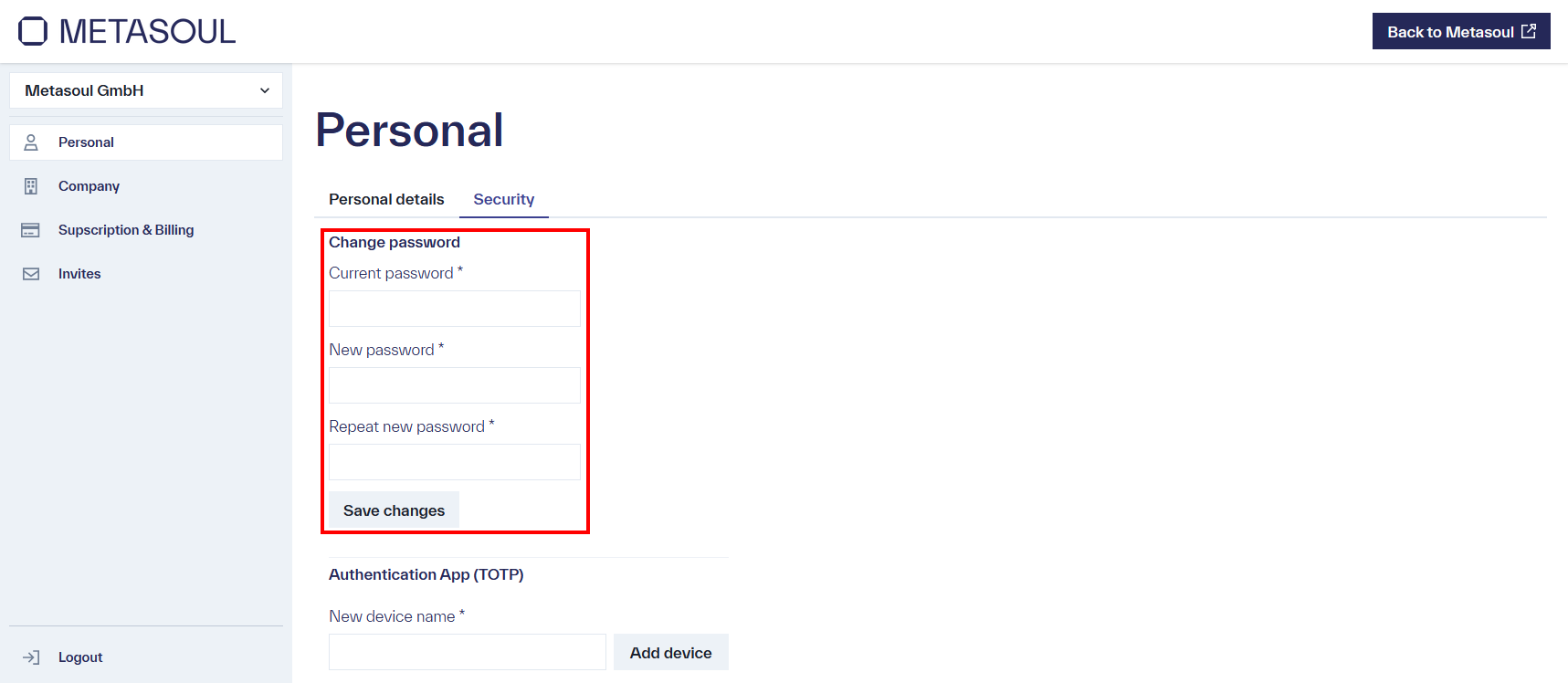
After entering and confirming the current and new passwords, the changes are applied using the “Save Changes” button. If the process is completed successfully, an automatic logout from the system occurs, after which a new login with the new password is required.
CTo change the password information, the “Account” option can be selected via the profile icon in the upper-right corner. Alternatively, access is available via the following direct link: https://login.metasoul.com/profile/personal
Next, the “Security” tab can be selected.
Under this tab, the “Authentication App (TOTP)” section is available. A field is provided in which a custom name for the authentication application can be entered. After entering the name, proceed by selecting “Add device.”
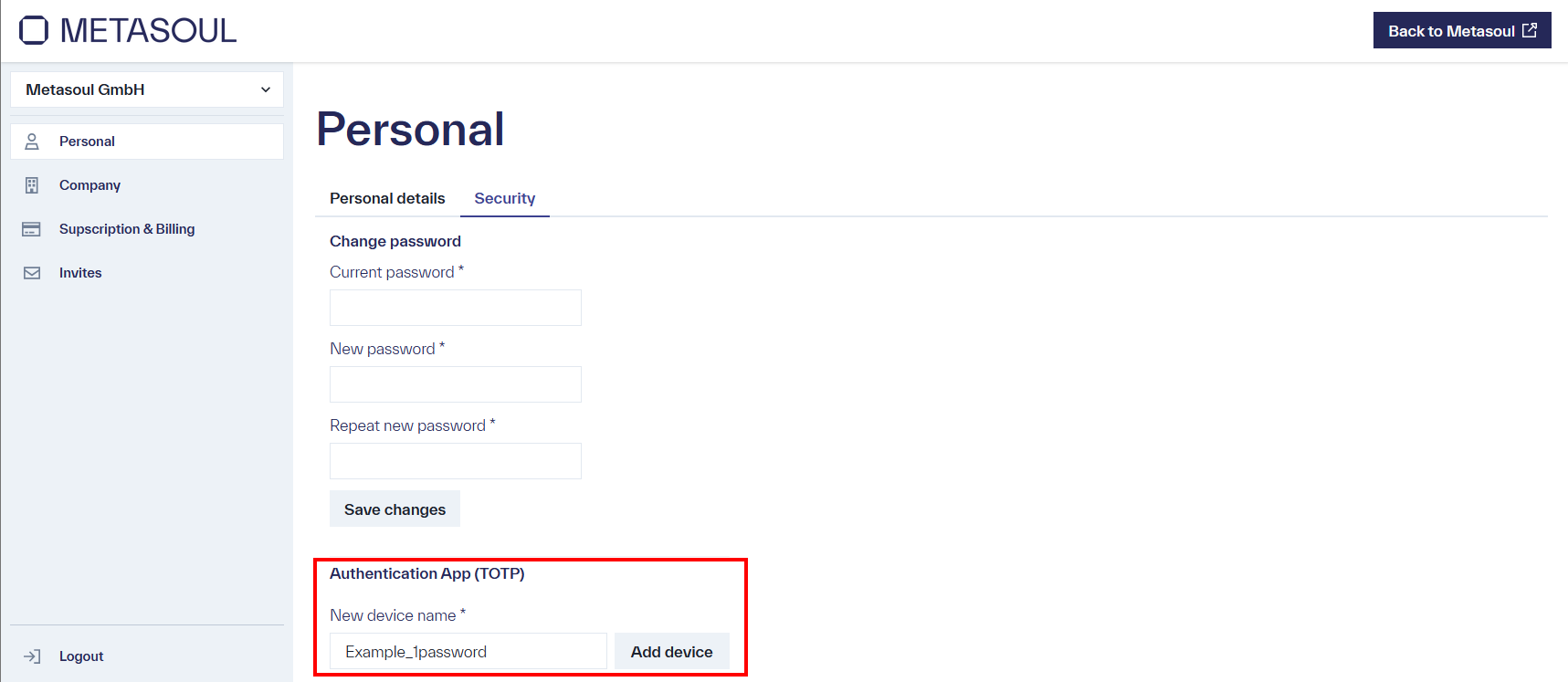
In the next step, it is possible to either scan the displayed QR code with the authentication application or enter the provided key manually.
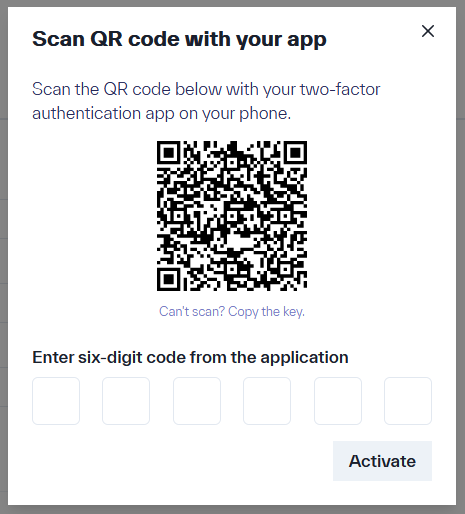
After the key has been successfully stored in the authentication application, the generated code is entered into the designated field to complete the setup.
Upon successful setup, a small text field appears displaying the device name in the “Authentication App (TOTP)” section.